Copyright © 2000 Christopher S. Charabaruk and Matthew R. Knight. All rights reserved. All articles, tutorials, etc. copyright © by the original authors unless otherwise noted. QB Cult Magazine is the exclusive property and copyright of Christopher Steffan Charabaruk and Matthew R. Knight.
Welcome to the first issue of QB Cult Magazine's second year. Although smaller than I had hoped, it's still a great issue, and I'm sure you'll find it as useful as any of our previous.
Like last month, we have no award image for Site of the Month. Next month (or any time before), this problem will be corrected, and you'll once again have a pretty picture to look at in the issues and on the winning sites.
Now, I want to talk about the diminishing quantity of submissions to QBCM. Since about Issue 7, we've been recieving less and less content each month, to the point where QBCM might have to be published once every other month. I don't want to do this, and I doubt you want that to happen either. So I ask you, submit tips, articles, news, anything you feel that belongs in QB Cult Magazine. We're by QB coders for QB coders, so without you QBCM is nothing.
Let's keep this boat floating.
Chris Charabaruk (EvilBeaver), editor
Note: Regarding BASIC Techniques and Utilities, it was originally published by Ziff-Davis Press, producers of PC Magazine and other computer related publications. After ZD stopped printing it, they released the rights to Ethan Winer, the author. After communicating with Ethan by e-mail, he allowed me to reproduce his book, chapter by chapter, in QBCM. You can find a full text version of BASIC Techniques and Utilities at Ethan's website <www.ethanwiner.com>, or wait until the serialization is complete, when I will have an HTML version ready.
There's a lot of interesting information in your magazine. I want to respond regarding Peter Cooper's letter in Issue 9. My 3d game is a direct descendant of Peter's original raycaster, ray1.bas. Thanks for showing the way in QB, Peter.
Jacques Mallah <jackmallah@yahoo.com>
I'm glad that you find QBCM interesting. We're here to be interesting and informative. And you aren't the only one who's built a raycaster around Peter's engine. And if you like QB games in 3d environments, check out this month's Demo of the Month.
To place an ad, please e-mail <qbcm@tekscode.com>, subject QB Ads. Include your name (real or fake), e-mail address, and message. You may include HTML formatting (but risk the chance of the formatting being thrown out).
By Ethan Winer <ethan@ethanwiner.com>
At some point, all but the most trivial computer programs will need to store and retrieve data using a disk file. Data files are used for two primary purposes: to hold information when there is more than can fit into the computer's memory all at once, and to provide a permanent, non-volatile means of storage. Files are also used to allow data from one computer to be used on another. Such data sharing can be as simple as a "sneaker net" system, whereby a floppy disk is manually carried from one PC to another, or as complex as a multi-user network where disk data can be accessed simultaneously by several users.
Although there are two fundamentally different types of disk drives, floppy and fixed [not counting CD-ROMs drives which are removable], they are accessed identically using the same BASIC statements. BASIC's file commands may also be used to communicate with devices such as a printer or modem, and even the screen and keyboard. There are many ways to manipulate files and devices, and some are substantially faster than others. By understanding fully how BASIC interacts with DOS, file access in your programs can often be speeded up by a factor of five or even more.
In this chapter I will address the fundamental aspects of file and device handling, and provide specific examples of how to achieve the highest performance possible. I will begin with an overview of how DOS organizes information on a disk, and then continue with practical examples. Unlike earlier chapters in which only short program fragments were shown, several complete programs and subprograms will be presented to illustrate the most important of these techniques in context. I will also describe the underlying theory of how disks are organized, and explain why this is important for the BASIC programmer to know.
In Chapter 7 the subject of files will be continued; there you will learn how to write programs for use with a network, and also how relational databases are constructed. In particular, coverage of these two very important subjects is severely lacking in the documentation that comes with Microsoft BASIC. As personal computers continue to permeate the office environment, networks and databases are becoming ever more common. Many programmers find themselves in the awkward position of having to write programs that run on a network, but with no adequate source of information.
All disks used with MS-DOS are organized into groups of bytes called sectors, and these sectors are further combined into clusters. DOS keeps track of every file on a disk, but with this organization DOS needs to remember only the cluster number at which each file begins. The minimum amount of disk space that is allocated by DOS is one cluster. Therefore, if you create a very small file--say, ten bytes--an entire cluster is allocated to that file, and then marked as unavailable for other use.
In most cases, each disk sector holds 512 bytes; however, one exception is when you use a RAM disk to simulate a disk drive in memory. Many RAM disk programs lets you specify a smaller sector size, to minimize waste when there are many small files. The number of sectors that are stored in each cluster depends on the type of disk and its size. For example, a 360K floppy disk stores two sectors in each cluster, and a 32 MB hard disk formatted using DOS 3.3 stores four sectors in each cluster. Therefore, the minimum unit of storage allocation for these disks is 1K (1024 bytes), and 2K (2048 bytes) respectively. DOS 2.x offers less room to store cluster numbers, and must combine more sectors into each cluster. A 20MB hard disk formatted with DOS 2.1 allocates 8K for even a one-line batch file!
As files are created and appended, DOS allocates new space to hold the file contents. By allocating disk space in units, DOS is also able to minimize disk fragmentation. As you learned in Chapter 2, BASIC manages variable-length strings by claiming new memory as necessary. When available memory is exhausted BASIC compacts its string space, overwriting abandoned string data with strings that are still active.
This method is not practical with disk files, because copying data from one part of the disk to another for the purpose of compaction would take an unacceptable amount of time. Therefore, DOS initially allocates an entire cluster for each file, to provide space for subsequent data. When the ten-byte file mentioned earlier is added to, space on the disk has already been set aside for all or part of the new data that will be written. And when the first cluster's capacity is exceeded, DOS allocates an entire second cluster to hold the additional data.
Even though it is common for a disk to become fragmented, allocating clusters that are comprised of groups of contiguous sectors greatly reduces the number of individual fragments that must be accessed. The track, sector, and cluster makeup of a 360k 5-1/4 inch floppy disk is shown in Figure 6-1.
This disk is divided into 40 circular tracks, and each track is further divided into nine sectors. One track holds 512 bytes, and each pair of tracks is combined to form a single cluster. For a 360k disk, no file fragment will ever be smaller than two clusters, since this is the minimum amount of space that DOS allocates. Likewise, a hard disk that combines four sectors into each cluster will never be divided into pieces smaller than four sectors.
Please understand that tracks and sectors are physical entities that are magnetically encoded onto the disk when it is formatted--it is DOS that treats each pair of sectors as a single cluster. Note that since a 360k disk stores nine sectors on each track, some clusters will in fact span two tracks.
Using the disk in Figure 6-1 as an example, the first short file that is written to it will be placed in cluster 1 (sectors 1 and 2), even if the file does not fill both sectors. The second file written to this disk will then be stored starting at cluster 2 (sectors 3 and 4). If the first file is later extended beyond the 1,024 bytes that can fit into cluster 1, the excess will be added beginning at cluster 3 (sectors 5 and 6). Thus, when DOS reads the first file sequentially, it must read cluster 1, skip over cluster 2, and then continue reading at cluster 3.
Of course, this takes longer than reading a file that is contiguous, because the disk drive must wait until the second file's intervening sectors have passed beneath it. This problem is compounded by additional head movement when the fragmentation extends across more than one track, as well as by other timing issues.
There are also three special areas on every disk: the boot sector, the Disk Directory and the File Allocation Table (FAT). DOS uses the directory and FAT to know the name of each file, and where on the disk its first cluster is located. For simplicity, these are not shown in Figure 6-1, and indeed, they are in fact stored before any files on a disk.
When a 360K floppy disk is formatted, DOS sets aside room for 112 directory entries. Each entry is 32 bytes long, and holds the name of each file on the disk, its current size, the date and time it was last written to, its attribute (hidden, read-only, and so forth), and starting cluster number. When you open a file, DOS searches each directory entry for the file name you specified, and once found, goes to the first cluster that holds the file's data.
The disk's FAT contains one entry for every cluster in the data area, to show which clusters are in use and by which file. The FAT is organized as a linked list, with each entry pointing to the next. The last cluster in the file is identified with a special value. The FAT also holds other special values to identify unused, reserved, and defective clusters.
Because there are a fixed number of directory entries on a disk, it is possible to receive a "Disk full" message when attempting to open a new file, even when there is sufficient data space. The root directory of a 360K floppy disk is limited to 112 entries, and a 1.2MB disk can hold up to 224 file names. Notice that a volume label takes one directory entry, although no data space is allocated to it. Unlike the root directory on a disk, subdirectories that you create are not limited to an arbitrary number of file name entries. Rather, a subdirectory is in fact a file, and it can be extended indefinitely until there is no more room on the disk.
Fortunately, most programmers do not have to deal with disk access at this level. When you ask BASIC to open a file and then read from or write to it, DOS handles all the low-level details for you. However, I think it is important to have at least a rudimentary understanding of how disks are organized. If you are interested in learning more about the structure of disks and data files, I recommend Peter Norton's Programmer's Guide to the IBM PC & PS/2. This excellent reference is published by Microsoft Press, and can be found at most major book stores.
A device is related to a file in that you can open it using BASIC's OPEN command, and then access it with GET # and PRINT # and the other file- related BASIC statements. There are a number of devices commonly used with personal computers, and these include printers, modems, tape backup units, and the console (the PC's keyboard and display screen). Some of these devices are maintained by DOS, and others are also controlled by BASIC.
For example, when you open "SCRN:" for Output mode in a BASIC program, BASIC takes responsibility for displaying the characters that you print. However, if you instead open "CON", BASIC merely sends the data to DOS, which in turn sends it to the display screen. Any device whose name is followed by a colon is considered a to be BASIC device; the absence of a trailing colon indicates a DOS device. This is important to understand, because there may be situations when you want to route your program's output directly through DOS, and not have it be intercepted by BASIC.
One such situation would be when printing the special control characters that the ANSI.SYS device driver recognizes. Normally, BASIC processes data in a PRINT statement by writing directly to screen memory. This provides the fastest response, which is of course desirable in most programs. But ANSI.SYS operates by intercepting the stream of characters sent through DOS. Since BASIC normally bypasses DOS for screen operations, ANSI.SYS never gets a chance to see those characters.
Another reason for printing through DOS is to activate TSR (Terminate and Stay Resident) programs that intercept the BIOS video routines. (When data is sent through DOS for display, DOS merely passes it on to the BIOS routines which do the real work.) For example, some early screen design utilities use this method, to accommodate multiple programming languages by avoiding the differences in calling and linking. Therefore, to activate, say, a pop-up help screen, you are required to print a special control string. One such utility uses two CHR$(255) bytes followed by the name of the screen to be displayed.
Although this method is very clumsy when compared to newer products that provide BASIC-linkable object files, it is simpler for the vendor than providing different objects for each supported language. This also allows screens to be displayed from within a batch file using the ECHO command. Therefore, if you need to send data through DOS or the BIOS for whatever reason, you would open and print to the "CON" device, instead of using normal PRINT statements or printing to the "SCRN:" device.
One final point worth mentioning is the value of using the same syntax for both files and devices. Many programs let the user specify where a report is to be sent--either to a disk file, a printer, or the screen. Rather than duplicate similar code three times in a program, you can simply assign a string variable to the appropriate device or file name. This is shown in the listing below.
PRINT "Printer, Screen, or File? (P/S/F): ";

DO
  Choice$ = UCASE$(INKEY$)
LOOP UNTIL INSTR(" PSF", Choice$) > 1

IF Choice$ = "P" THEN
  Report$ = "LPT1:"
ELSEIF Choice$ = "S" THEN
  Report$ = "SCRN:"
ELSE
  PRINT
  LINE INPUT "Enter a file name: ", Report$
END IF

OPEN Report$ FOR OUTPUT AS #1
  PRINT #1, Header$
  PRINT #1, SomeStuff$
  PRINT #1, MoreStuff$
  ...
  ...
CLOSE #1
END
Here, the same block of code can be used regardless of where the report is to be sent. The only alternative is to duplicate similar code three times using PRINT statements if the screen was specified, LPRINT if they want the printer, or PRINT # if the report is being sent to a file. Of course, this example could be further expanded to prompt for a printer number (1, 2, or 3) if a printer is specified.
All data is stored on disk as a continuous stream of binary information, regardless of how the file was opened. Even though BASIC and other languages offer a number of different file access methods, all disk files merely contain a series of individual bytes. When you open a file for random access, you are telling BASIC that it is to treat those bytes in a particular manner. In this case, the file is comprised of one or more fixed-length records. Thus, BASIC can perform many of the low level details that help you to organize and maintain that data.
Likewise, opening a file for INPUT tells BASIC that you plan to read variable-length string data. Rather than reading or writing a single block of a given length, BASIC instead knows to continue to read bytes from the file until a terminating comma or carriage return is encountered. However, in both of these cases the disk file is still comprised of a series of bytes, and the access method you specify merely tells BASIC how it is to treat those bytes.
The short program below illustrates this in context, and you can verify that all three files are identical using the DOS COMP utility program.
OPEN "File1" FOR OUTPUT AS #1
  PRINT #1, "Testing"; SPC(13);
CLOSE

OPEN "File2" FOR BINARY AS #1
  Work$ = "Testing" + SPACE$(13)
  PUT #1, , Work$
CLOSE

OPEN "File3" FOR RANDOM AS #1 LEN = 20
  FIELD #1, 20 AS Temp$
  LSET Temp$ = "Testing"
  PUT #1
CLOSE
END
In fact, even executable program files are indistinguishable from data files, other than by their file name extension. Again, it is how you choose to view the file contents that determines the actual form of the data.
Before I explain the various file access methods that BASIC provides, there is one additional low-level detail that needs to be addressed: file buffers. A file buffer is a portion of memory that holds data on its way to and from a disk file, and it is used to speed up file reads and writes.
As you undoubtedly know, accessing a disk drive is one of the slowest operations that occurs on a PC. Because disk drives are mechanical, data being read or written requires a motor that spins the actual disk, as well as a mechanism to move the drive head to the appropriate location on the disk surface. Even if a file is located in contiguous disk clusters, a substantial amount of mechanical activity is required during the course of accessing a large file.
When you open a file for reading, DOS uses a section of memory that it allocated on bootup as a disk buffer. The first time the file is accessed, DOS reads an entire sector into memory, even if your program requests only a few bytes. This way, when your program makes a subsequent read request, DOS can retrieve that data from memory instead of from the disk. This provides an enormous performance boost, since memory can be accessed many times faster than any mechanical disk drive. Even if the next portion of data being read is located in the same sector, the disk drive must wait for the disk to spin until that sector arrives at the magnetic read/write head.
When using a floppy disk the time delays are even worse. Once a second or two have passed after accessing a floppy disk, the motor is turned off automatically. Having to then restart it again imposes yet another one or two second delay.
Similarly, when you write data to a file DOS simply stores the data in the buffer, instead of writing it to the disk. When the buffer becomes full (or when you close the file--whichever comes first), DOS writes the entire buffer contents to the disk all at once. Again, this is many times faster than accessing the physical drive every time data is written.
You can control the amount of memory that DOS sets aside for its buffers with a BUFFERS= statement in the PC's CONFIG.SYS file. For each buffer you specify, 512 bytes of memory is taken and made unavailable for other uses. Even though you might think that more buffers will always be faster than fewer, this is not necessarily the case. For each buffer, DOS also maintains a table that shows which disk sectors the buffer currently holds. At some point it can actually take longer for DOS to search through this table than to read the sector from disk. Of course, this time depends on the type of disk (floppy or hard), and the disk's access speed.
Although DOS' use of disk buffers greatly improves file access speed, there is still room for improvement. Each call to DOS to read or write a file takes a finite amount of time, because most DOS services are handled by the same interrupt service routine. Which particular service a program wants is specified in one of the processor's registers, and determining which of the many possible services has been requested takes time.
To further improve disk access performance, BASIC performs additional file buffering using its own routines. Since BASIC's buffers are usually located in near memory, they can also be accessed very quickly, because additional steps are needed to access data outside of DGROUP. However, BASIC PDS [and VB/DOS] store file buffers in the same segment used for string variables, so there is slightly less improvement when far strings are being used. When you open a random access file, a block of memory large enough to hold one entire record is set aside in string memory. If a record length is given as part of the OPEN command with LEN =, BASIC uses that for the buffer size. Otherwise, it uses the default size of 128 bytes.
When you open a file for sequential access, BASIC also allocates string memory for a buffer. 512 bytes are used by default, though you can override that with the optional LEN = argument. Specifying a buffer size with non-random files will be discussed later in this chapter.
Note that BASIC PDS does not create a buffer when a file is opened for random access and you are using far strings. If a subsequent FIELD statement is then used, the fielded strings themselves comprise the buffer. Otherwise, BASIC assumes you will be reading the data into a TYPE variable, and avoids the extra buffering altogether. Also, file buffers in a BASIC PDS program are always stored in string memory, which is not necessarily DGROUP. If you are in the QBX environment or have compiled with the /fs far strings option, all file buffers will be stored in the far string data segment.
Although BASIC's additional file buffering does improve your program's speed, it also comes at a cost: the buffers take away from string memory, and the only way to release their memory is to flush their contents to disk by closing the file. DOS offers a service to purge a file's buffers, to ensure that the data will be intact even if the program is terminated abnormally or the power is turned off. Therefore, it is considered good practice to periodically close a file during long data entry sessions. But closing the file and then reopening it after writing each record takes a long time, and more than negates any advantage offered by BASIC's added buffering. [Also, the DOS service that flushes a file's buffers does not flush BASIC's buffers. Any data you have written to disk that is still pending in a BASIC buffer will not be written to the file by this service.]
It is interesting to note that BASIC always closes all open files when a program ends, so it is not strictly necessary to do that manually. I mention this only because you can save a few bytes by eliminating the CLOSE command. Also, DOS flushes its buffers and closes all open files when a program ends, so a few bytes can be saved this way even with non-BASIC programs. Again, I am not necessarily recommending that you do this, and some programmers would no doubt disagree with such advice. But the fact is that an explicit CLOSE is not truly needed.
BASIC offers three fundamental methods for accessing files, and these are specified when the file is opened. There are also several variations and options available with each method, and these will be discussed in more detail in the sections that describe each method.
The first access method is called Sequential, because it requires you to read from or write to the file in a continuous stream. That is, to read the last item in a sequential file you must read all of the items that precede it. There are three different forms of OPEN for accessing sequential files.
OPEN FOR OUTPUT creates the named file if it does not yet exist, or truncates it to a length of zero if it does. Once a file has been opened for output, you may only write data to it.
OPEN FOR APPEND is related to OPEN FOR OUTPUT, and it also tells BASIC to open the file for writing. Unlike OPEN FOR OUTPUT, however, OPEN FOR APPEND does not truncate a file if it already exists. Rather, it opens the file and then seeks to the place just past the last byte. This way, data that is subsequently written will be appended to the end of the file. Note that OPEN FOR APPEND will also create a file if it does not already exist.
OPEN FOR INPUT requires that the named file be present; otherwise, a "File not found" error will result. Once a file has been opened for input, you may only read from it.
BASIC also offers the SEEK command to skip to any arbitrary position in the file, and SEEK can in fact be used with sequential files. However, sequential files are generally written using a comma or a carriage return/line feed pair, to indicate the end of each data item. Since each item can be of a varying length, it is difficult if not impossible to determine where in the file a given item begins. That is, if you wanted to read, say, the 200th line in a README file, how could you know where to seek to?
The second primary file access method is Random, and it allows you to read from and write to the file. When you use OPEN FOR RANDOM, BASIC knows that you will be accessing fixed-length blocks of data called records. The advantage of random access is that any record can be accessed by a record number, instead of having to read through the entire file to get to a particular location. That is, you can read or write any record randomly, without regard to where it is in the file. Because each record has the same physical length as every other record, it is easy for BASIC to calculate the location in the file to seek to, based on the desired record number and the fixed record length.
Using random access is ideal for data that is already organized as fixed-length records such as you would find in a name and address database. Since each record contains the same amount of information, there is a natural one-to-one correspondence between the data and the record number in which it resides. For example, the data for customer number 1 would be stored in record number 1, customer 2 is stored in record 2, and so forth.
Random access can also be used for text and other document files; however, that is much less common. Although this would let you quickly access any arbitrary line of text in the file, the tradeoff is a considerable waste of disk resources. For each line, space equal to the longest one must be set aside for all of them. In a typical document file line lengths will vary greatly, and it is wasteful to set aside, say, 80 bytes for each line.
The third access method is Binary, which is a hybrid of sequential and random access. A binary file is opened using the OPEN FOR BINARY command, and like random, BASIC lets you both read and write the file. Binary access is most commonly used when the data in the file is neither fixed- length in nature, nor delimited by commas or carriage returns. One example of a binary file is a Lotus 1-2-3 worksheet file. Each cell's contents follows a well-defined format, but varying types of information are interspersed throughout the file.
For example, an 8-byte double-precision number may be followed by a variable length text field, which is in turn followed by the current column width represented as a 2-byte integer. Another example of binary information is the header portion of a dBASE data file. Although the data itself is of a fixed length, a block of data is stored at the beginning of every dBASE data file to indicate the number of fields in each file and their type. [Naturally, the length of this header will vary depending on the number of fields in each record.] An example program to read Lotus worksheet files is given later in this chapter, and a program to read and process dBASE files is shown in Chapter 7.
Note that BASIC imposes its own rules on what you may and may not do with each file access method. This is unfortunate, because DOS itself has no such restrictions. That is, DOS allows you to open a file for output, and then freely read from the same file. To do this with BASIC you must first close the file, and then open it again for input. You can bypass BASIC entirely if you want, to open files and then read and write them. This requires using CALL Interrupt, and examples of doing this will be shown in Chapter 11.
BASIC offers two different forms of the OPEN command. The more common method--and the one I prefer--is as follows:
OPEN FileName$ FOR OUTPUT AS #FileNum [LEN = Length].
Of course, OUTPUT could be replaced with RANDOM, BINARY, INPUT, or APPEND. The other syntax is more cryptic, and it uses a string to specify the file mode. To open a file for output using the second method you'd use this:
OPEN "O", #FileNum, FileName$, [Length]
The first syntax is available only in QuickBASIC and the other current versions of the BASIC compiler. The second is a holdover from GW-BASIC, and according to Microsoft is maintained solely for compatibility with old programs. The available single-letter mode designators are "O" for output, "I" for input, "R" for random, "A" for append, and "B" for binary. Note that "B" is not supported in GW-BASIC, and was added beginning with QuickBASIC version 4.0.
Besides being more obscure and harder to read, the older syntax does not let you specify the various access and sharing options available in the newer syntax. One advantage of the older method is that you can defer the open mode until the program runs. That is, a string variable can be used to determine how the file will be opened. However, there are few situations I can envision where that would be useful. Of course, the choice is yours, and some programmers continue to use the original version.
BASIC offers a number of different statements for opening and manipulating files. In a few cases, the same command may have different meanings, depending on how the file is opened. For example LEN = mentioned earlier assumes a different default value when a file is opened for random access compared to when it is opened for output. Similarly, GET # may or may not accept or require a variable name and optional seek offset, depending on the file mode. Therefore, pay close attention to each statement as it is described in the sections that follow. Specific differences will be listed as they relate to each of the various file access methods.
Before any file or device may be accessed, it must first be opened with BASIC's OPEN statement. When you use OPEN, it is up to you make up a file number that will be used when you reference the file later. If you use OPEN "MYDATA" FOR OUTPUT AS #1, then you will also use the same file number (1) when you subsequently print to the file. For example, you might use PRINT #1, Any$. Initially, it might appear that letting the programmer determine his or her own file numbers is a feature. After all, you are allowed to make up your own variable names, so why not file numbers too? Indeed, BASIC is rare among the popular languages in this regard; both C and Pascal require that the programmer remember a file number that is given to them.
There are several problems with BASIC's use of file numbers, and in fact DOS does not use this method either. Instead, DOS returns a file handle when a file has been successfully opened. When an assembly language program (or BASIC itself) calls DOS to open a file, it is DOS who issues the number, and not the program. BASIC must therefore maintain a translation table to relate the numbers you give to the actual handles that DOS returns. This table requires memory, and that memory is taken from DGROUP.
But there is another, more severe problem with BASIC's use of file numbers instead of DOS handles, because it is possible that you could accidentally try to open more than one file using the same number. In a small program that opens only one or two files, it is not difficult to remember which file number goes with which file. But when designing reusable subroutines that will be added to more than one program, it is impossible to know ahead of time what file numbers will be in use.
To solve this problem, Microsoft introduced the FREEFILE function with QuickBASIC 4.0. FREEFILE was described in Chapter 4, but it certainly bears a brief mention again here. Each time you use FREEFILE it returns the next available file number, based on which numbers are already taken. Therefore, any subroutine that needs to open a file can use the number FREEFILE returns, confident that the number is not already in use.
Unless you specify otherwise, a file that has been opened for RANDOM or BINARY can be both read from and written to. The ACCESS option of the OPEN statement lets you indicate that a random or binary file may be read or written only. Even though you may ask for both READ and WRITE access when the file is opened, read/write permission is the default. In some cases you may need to open a file for binary access, and also prevent your program from later writing to it. In that case you would use the ACCESS READ option.
Likewise, specifying ACCESS WRITE tells BASIC to let your program write to the file, but prevent it from reading. This may seem nonsensical, but one situation in which write-only access might be desirable is when designing a network mail system. In that case it is quite likely that a program would be permitted to send mail to another user's electronic "mailbox", but not be allowed to read the mail contained in that file. The various ACCESS options are intended for use with any version of DOS higher than 2.0.
Frankly, these ACCESS options are pointless, because if you wrote the program then you can control whether the file is read from or written to. If you are writing the Send Mail portion of a network application, then you would disallow reading someone else's mail as part of the program logic. And if you do open a file for ACCESS WRITE, BASIC will generate an error if you later try to read from it. So I personally don't see any real value in using these ACCESS arguments.
The remaining two OPEN options are LOCK and SHARED, and these are meant for use with shared files under DOS 3.0 or later. Shared access is primarily employed on a network, though it is possible to share files on a single computer. This could be the case when a file needs to be accessed by more than one program when running under a task-switching program such as Microsoft Windows.
You can specify that a file is to be shared by simply adding the SHARED clause to the OPEN statement. Thus, another program could both read and write the file, even while it is open in your program. To specify shared access but prevent other programs from writing to the file you would use LOCK WRITE. Similarly, using LOCK READ lets another program write to the file but not read from it, and LOCK READ WRITE prevents both.
The LOCK statement can optionally be used on a shared file that is already open to prohibit another program from accessing it only at certain times. The LOCK statement allows all or just a portion of a file to be locked, and the UNLOCK statement releases the locks that were applied earlier. Please understand that these network operations are described here just as a way to introduce what is possible. Network and database programming will be described in depth in Chapter 7.
Finally, you close an open file using BASIC's CLOSE command. CLOSE accepts one or more file numbers separated by commas, or no numbers at all which means that every open file is to be closed. You can also use the RESET command to close all currently open files. When a file that has been opened for one of the output modes is closed, its file buffer is flushed to disk and DOS updates the directory entry for that file to indicate the current date and time and new file size. Closing any type of file releases the buffer memory back to BASIC's string memory pool for other uses.
Once a file has been opened you can read from it, write to it, or both, depending on what form of OPEN was used. Any file that has been opened for input may be read from only. Unlike the BASIC-related limitations I mentioned earlier, DOS imposes this restriction, and for obvious reasons. However, when you open a file for output or append, it is BASIC that prevents you from reading back what you wrote. BASIC imposes several other unfortunate limitations regarding what you can and cannot do with an open file, as you will see momentarily.
Sequential access is commonly used with devices as well as with files. Although it is possible to open a printer for random access, there is little point since data is always printed sequentially. Similarly, reading from the keyboard or writing to the screen must be sequential. In the discussions that follow, you can assume that what is said about accessing files also applies to devices, unless otherwise noted.
Data is written to a sequential file using the PRINT # statement, using the same syntax as the normal PRINT statement when printing to the display screen. That is, PRINT # accepts an optional semicolon to suppress a carriage return and line feed from being written to the file, or a comma to indicate that one or more blank spaces is to be written after the data. The number of blanks sent to the file depends on the current print position, just like when printing to the screen.
You can also use the WRITE # statement to print data to a sequential file, but I recommend against using WRITE in most situations. Unlike PRINT that merely sends the data you give it, WRITE adds surrounding quotes to all string data, which takes time and also additional disk space. Since a subsequent INPUT from the file will just have to remove those quotes which takes even more time, what's the point? Further, WRITE does not let you specify a trailing semicolon or comma. Although a comma may be used as a delimiter between items written to disk, the comma is stored in the file literally when WRITE is used.
The only time I can see WRITE being useful is for printing data that will be read by a non-BASIC application that explicitly requires this format. Many database and spreadsheet programs let you import comma- delimited data with quoted strings such as WRITE uses. These programs treat each complete line ending with a carriage return as an entire record, and each comma-delimited item within the line as a field in that record. But you should avoid WRITE unless your program really needs to communicate with other such applications, because it results in larger data files and slower performance.
Another use for WRITE is to protect strings that contain commas from being read incorrectly by a subsequent INPUT statement. INPUT uses commas to delimit individual strings, and the quotes allow you to input an entire string with a single INPUT command. But BASIC's LINE INPUT does this anyway, since it reads an entire line of text up to a terminating carriage return. You could also add the quotes manually when needed:
IF INSTR(Work$, ",") THEN
  PRINT #1, CHR$(34); Work$; CHR$(34)
ELSE
  PRINT #1, Work$
END IF
You may also use TAB and SPC to format the output you print to a file or device. For the most part, TAB and SPC operate like their non-file counterparts, including the need to add an extra empty PRINT to force a carriage return at the end of a line. That is, when you use
PRINT Any$; TAB(20)
or
PRINT #1, SomeVar; SPC(13)
BASIC adds a trailing semicolon whether you want it or not. To force a new line at that point in the printing process requires an additional PRINT or PRINT # statement. This isn't really as much of a nuisance as yet another code bloater, since an empty PRINT adds 9 bytes of compiler-generated code and an empty PRINT # adds 18 bytes.
One important difference between the screen and file versions of TAB and SPC is the way long strings are handled. If you use TAB or SPC in a PRINT statement that is then followed by a string too long to fit on the current line, the screen version will advance to the next row, and print the string at the left edge. This is probably not what you expected or wanted. When printing to a file, however, the string is simply written without regard to the current column. Column 80 is the default width for the screen and printer when they have been opened as devices, though you may change that using WIDTH.
The WIDTH statement lets you specify at which column BASIC is to automatically add a carriage return/line feed pair. The default for a printer is at column 80. In most programming situations this behavior is a nuisance, since many printers can accommodate 132 columns. After all, why shouldn't you be allowed to print what you want when you want, without BASIC intervening to add unexpected and often unwanted extra characters? Most programmers disable this automatic line wrapping by using WIDTH # FileNum, 255 if the printer was opened as a device, or WIDTH LPRINT, 255 if using LRPINT statements.
Curiously, this special value is not mentioned anywhere in the otherwise very complete documentation that comes with BASIC PDS. In fact, using a width value of 255 is mandatory if you intend to send binary data to a printer. Most modern printers accept both graphics commands and downloadable fonts. Since either of these will no doubt result in strings longer than 80 or even 255 characters, it is essential that you have a way to disable the "favor" that BASIC does for you. Undoubtedly, the automatic addition of a carriage return and line feed goes back to the early days of primitive printers that required this. The only reason Microsoft continues this behavior is to assure compatibility with programs written using earlier versions of BASIC.
Related to the WIDTH anomaly is BASIC's insistence on adding a CHR$(10) line feed whenever you print a CHR$(13) carriage return to a device. Again, this dubious feature is provided on the assumption that you would always want a line feed after every carriage return. But there are many cases where you wouldn't, such as the font and graphics examples mentioned earlier. If you add the "BIN" (binary) option when opening a printer, you can prevent BASIC from forcing a new line every 80 columns, and also suppress the addition of a line feed following each carriage return. For example, OPEN "LPT1:BIN" FOR OUTPUT AS #1 tells BASIC to open the first parallel printer in binary mode.
The PRINT # USING statement lets you send formatted numeric data to a file, in the same way you would use the regular PRINT USING to format numbers on the screen. PRINT # USING accepts the same set of formatting commands as PRINT USING, allowing you to mix text and formatted numbers in a single PRINT operation. If your program will be printing formatted reports from the disk file later, I recommend using PRINT USING at that time, instead of when writing the data to disk. Otherwise, the extra spaces and other formatting information are added to the file increasing its size. In fact, PRINT # USING is really most appropriate when printing to a device such as a printer.
Finally, it is important to point out the importance of selecting a suitable buffer size. As I described earlier, BASIC and DOS employ an area of memory as a buffer to hold information on its way to and from disk. This way information can often be written to or read from memory, instead of having to access the physical disk each time. Besides the buffers that DOS maintains, BASIC provides additional buffering when your program is using sequential input or output.
BASIC lets you control the size of this buffer, using the LEN = option of the OPEN statement. In general, the larger you make the buffer, the faster your programs will read and write files. The trade-off, however, is that BASIC's buffers are stored in string memory. With QuickBASIC and near strings in BASIC PDS, the buffer is located in DGROUP. When BASIC PDS far strings are used, the buffer is in the same segment that the current module uses for string storage.
Conversely, you can actually reduce the default buffer size when string space is at a premium, but at the expense of disk access speed. When using OPEN FOR INPUT and OPEN FOR OUTPUT, BASIC sets aside 512 bytes of string memory for the buffer, unless you specify otherwise. If you have many sequential files open at once you could reduce the buffer sizes to 128 bytes, for a net savings of 384 bytes for each file. The legal range of values for LEN = is between 1 and 32767 bytes.
Notice that the best buffer values will be a multiple of a power of two, and when increasing the buffer size, a multiple of 512. Since a disk sector is almost always 512 bytes, DOS will fill the buffer with an entire sector. In fact, DOS always reads and writes entire sectors anyway. If you use a buffer size of, say, 600 bytes, DOS will have to read 1024 bytes just to get the first portion of the second sector. But when more data is needed later, BASIC will then have to go back and ask DOS for the same information again. By reading entire sectors or evenly divisible portions of a sector, you can avoid having BASIC and DOS read the same information more than once.
Even though larger buffers usually translate to better performance, you will eventually reach the point of diminishing returns, beyond which little performance improvement will result. Table 6-1 shows the timing results with various buffer sizes when reading a 104K BASIC source file using LINE INPUT. Understand that this test is informal, and merely shows the results obtained using only one PC. In particular, the hard disk results are for a fairly fast (17 millisecond) 150 MB ESDI drive and a PC equipped with a 25 MHz. 386. Therefore, the improvement from a larger buffer is less than you would get on a slower computer with a slower hard disk or with a floppy disk. Many older XT and AT compatible PCs will probably fall somewhere between the results shown here for the hard and floppy disks. Notice that while the improvement actually seems somewhat worse for some increases, this can be attributed to the lack of resolution in the PC's system timer.
| Buffer Size (in bytes) | Seconds |
|---|---|
| 64 | 2.699 |
| 128 | 2.420 |
| 256 | 2.410 |
| 512 | 2.420 |
| 1024 | 2.311 |
| 2048 | 2.139 |
| 4096 | 2.201 |
| 8192 | 2.080 |
| 16384 | 2.039 |
| Buffer Size (in bytes) | Seconds |
|---|---|
| 64 | 45.260 |
| 128 | 45.141 |
| 256 | 45.148 |
| 512 | 45.150 |
| 1024 | 27.180 |
| 2048 | 18.180 |
| 4096 | 13.570 |
| 8192 | 11.650 |
| 16384 | 11.371 |
It is important to point out that a buffer is created only for sequential input and output, and also for random files with QuickBASIC. Opening a file for random access with BASIC PDS [and I'll presume VB/DOS] does not create a buffer, nor does opening a file for binary with either version. Further, with random access files a buffer is created by QuickBASIC only when FIELD is used, and the buffer is located within the actual fielded strings. Therefore, the LEN = argument in an OPEN FOR RANDOM statement merely tells BASIC how to calculate record offsets when SEEK and GET are used.
Sequential data is read using INPUT #, LINE INPUT #, or INPUT$ #. Like the console form of INPUT, INPUT # can be used to read one or more variables of any type and in any order with a single statement. When reading a file, INPUT # recognizes both the comma and the carriage return as a valid delimiter, to indicate the end of one variable. This is in contrast to the regular [keyboard] version of INPUT, which issues a "Redo from start" error if the wrong number of comma-delimited variables are entered. Instead, INPUT # simply moves on to the next line for the remaining variables.
LINE INPUT # avoids this entirely, and simply reads an entire string without regard to commas until a carriage return is encountered. This precludes LINE INPUT # from being used with anything but string variables. However, LINE INPUT # can be used with fixed- as well as variable-length strings, without the overhead of copying from one type to the other that BASIC usually adds. [This copying was described in Chapter 2.] As with INPUT #, LINE INPUT # strips leading and trailing quotes from the line if they are present in the file.
The last method for reading a sequential file or device is with the INPUT$ # function. INPUT$ # is used to read a specified number of characters, without regard to their meaning. Where commas and carriage returns are normally used to delimit each line of text, INPUT$ returns them as part of the string. INPUT$ # accepts two arguments--the number of characters to read and the file number--and assigns them to the specified string. To read, say, 20 bytes from a sequential file that has been opened as #3, you would use Any$ = INPUT$(20, #3). Although the pound sign (#) is optional, I prefer to include it to avoid confusion as to which parameter is the file number and which is the number of bytes.
As with sequential output, specifying a larger buffer size than the default 512 bytes can greatly improve the speed of INPUT # and LINE INPUT # statements, but at the expense of string memory.
Unlike sequential files that are almost always read starting at the beginning, data in a random access file can be accessed literally in any arbitrary order. Random access files are comprised of fixed-length records, and each record contains one or more fields. The most common application of random access techniques is in database programs, where each record holds the same type of information as the next. For example, a customer name and address database is comprised of a first name, a last name, a street address, city, state, and zip code. Even though different names and addresses will be stored in different records, the format and length of the information in each record is identical.
BASIC provides two different ways to handle random access files: the FIELD statement and TYPE variables. Before QuickBASIC version 4.0, the FIELD method was the only way to define the structure of a random access data file. Although Microsoft has publicly stated that FIELD is provided in current versions of BASIC only for compatibility with older programs, it has several important properties that cannot be duplicated in any other way. FIELD also lets you perform some interesting an non-obvious tricks that have nothing to do with reading or writing files. These are described later in this chapter in the section Advanced File Techniques.
Once a file has been opened for RANDOM you may use the FIELD statement by specifying one or more string variables to hold each field, along with their length. A typical example showing the syntax for the FIELD statement is as follows:
OPEN FileName$ FOR RANDOM AS #1 LEN = 97
FIELD #1, 17 AS LastName$, 14 AS FirstName$, 32 AS Address$, 15 AS City$, _
  2 AS State$, 9 AS Zip$, 8 AS BalanceDue$
Here, the file is opened for random access, and the record length is established as being 97 characters. This allows room for each of the fields in the FIELD statement. In this case 17 characters are set aside for the last name, 14 for the first name, 32 for the street address, 15 for the city, 2 for the state, 9 for the zip code, and 8 for the double precision balance due value. I often use a field length of 32 characters for name and address data, because that's how many can fit comfortably on a standard 3-1/2 by 15/16 inch mailing label. (The first and last names above add up to 32 characters, including a separating blank space.)
Note that the underscore shown above is used here as line continuation character, and you'd actually type the entire statement as one long line. In fact, in most cases a FIELD statement must be able to fit entirely on a single line, and there is no direct way to continue the list of variables. Although the BC compiler recognizes an underscore to continue a line as shown here, the BASIC environment does not. Underscores in a source file are removed by the BASIC editor when the file is loaded, and the lines are then combined.
If a second FIELD statement for the same file number is given on a separate line, the additional strings specified are placed starting at the beginning of the same buffer. While it is possible to coerce a new FIELD statement to begin farther into the buffer, that requires an additional dummy string variable:
FIELD #1, 17 AS LastName$, 14 AS FirstName$
FIELD #1, 31 AS Dummy$, 32 AS Address$, 15 AS City$
FIELD #1, 78 AS Dummy2$, 2 AS State$, 9 AS Zip$
Here, the dummy strings are used as placeholders to force the Address$ and State$ variables farther into the buffer, and you would not refer to the dummy strings in your program.
Once a field buffer has been defined, special precautions are needed when assigning and reading the fielded string variables. As you know, BASIC often moves strings around in memory when they are assigned. However, that would be fatal if those strings are in a field buffer. A field buffer is written to disk all at once when you use PUT, and it is essential that all of the strings therein be contiguous. If you simply assign a variable that is part of a field buffer, BASIC may move the string data to a new location outside of the buffer and your program will fail.
To avoid this problem you must assign fielded string using either LSET, RSET, or the statement form of MID$. These BASIC commands let you insert characters into a string, so BASIC will not have to claim new string memory. This further contributes to FIELD's complexity, and it also adds slightly to the amount of code needed for each assignment. For example, the statement One$ = Two$ generates 13 bytes of compiled code, and the statement LSET One$ = Two$ creates 17. Although LSET is generally faster than a direct assignment, it is important to understand that it also creates more code. But the situation gets even worse.
Because all of the variables in a field buffer must be strings, additional steps are needed to assign numeric variables such as integer and double precision. The CVI and MKS$ family of BASIC functions are needed to convert numeric data to their equivalent in string form and back. There are eight of these functions in QuickBASIC with two each for integer, long integer, single precision, and double precision variables. BASIC PDS adds two more to support the Currency data type. All of the various conversion functions have names that start with the letters MK or CV, and a complete list can be found in your BASIC manual.
To convert a double precision variable to equivalent data in an 8-byte string you would use MKD$, and to convert a 2-byte string that holds an integer to an actual integer value you would use CVI. MKD$ stands for "Make Double into a string" and it has a dollar sign to show that it returns a string. CVI stands for "Convert to Integer" and the absence of a dollar sign shows that it returns a numeric value. Combined with the requisite LSET, a complete assignment prior to writing a record to disk with PUT would be something like this: LSET BalanceDue$ = MKD$(BalDue#). And if a record has just been read using GET, an integer value in the field buffer could be retrieved using code such as MyInt% = CVI(IntVar$).
The need for LSET, RSET, CVI, and MKS$ and so forth has historically made learning random access file techniques one of the most difficult and messy aspects of BASIC programming. Besides having to learn all of the statements and how they are used, you also need to understand how many bytes each numeric data type occupies to set aside the correct amount of space in the field buffer. Further, a lot of compiled code is created to convert large amounts of data between numeric and string form. For these and other reasons, Microsoft introduced the TYPE variable with its release of QuickBASIC 4.0.
The TYPE method allows you to establish a record's structure by defining a custom variable that contains individual components for each field in the record. In general, using TYPE is a much clearer way to define a record, and it also avoids the added library code to handle the FIELD, LSET, CVI, and MKS$ statements. When you use AS INTEGER and AS DOUBLE and so forth to define each portion of the TYPE, the correct number of bytes are allocated to store the value in its native fixed-length format. This avoids having to convert the data to and from ASCII digits.
Using the earlier example, here's how you would define and assign the same record using a TYPE variable:
TYPE Record
  LastName AS STRING * 17
  FirstName AS STRING * 14
  Address AS STRING * 32
  State AS STRING * 2
  Zip AS STRING 9
  BalanceDue AS DOUBLE
END TYPE
DIM MyRecord AS Record

MyRecord.LastName = LastName$
MyRecord.FirstName = FirstName$
MyRecord.Address = Address$
MyRecord.State = State$
MyRecord.Zip = Zip$
MyRecord.BalanceDue = BalanceDue#
Even though the same names are used for both the TYPE variable members and the strings they are being assigned from, you may of course use any names you want. You could also assign the portions of a TYPE variable from constants using MyRecord.Zip = "06896" or MyRecord.BalanceDue = 4029.80. Further, one entire TYPE variable may be assigned to another in a single operation using ThisType = ThatType. Dissimilar TYPE variables may be assigned using LSET like this: LSET MyType = YourType.
As you can see, using TYPE variables instead of FIELD yields an enormous improvement in a program's clarity. However, there are still some programming problems that only FIELD can solve. One limitation of using TYPE variables is that the file structure must be known when the program is compiled, and you cannot defer this until runtime. Therefore, it is impossible to design a general purpose database program, in which a single program can manipulate any number of differently structured files. The compiler needs to know the length and type of data within a TYPE variable, in order to access the data it contains. So while you can use a variable as the LEN = argument with OPEN, the record structure itself must remain fixed.
FIELD avoids that limitation because it accepts a variable number of arguments, and varying lengths within each field component. Therefore, by dimensioning a string array to the number of elements needed for a given record, the entire process of opening, fielding, reading, and writing can be handled using variables whose contents and type are determined at runtime. Some amount of IF testing will of course be required when the program runs, but at least it's possible to process a file using variable information.
The following complete program first creates a random access file with five slightly different records using a TYPE variable. It then reads the file independently of the TYPE structure using the FIELD method. Although the second portion of the program uses DATA statements to define the file's structure, in practice this information would be read from disk. In fact, this is the method used by dBASE and Clipper files, based on the field information that is stored in a header portion of the data file.
'----- create a data file containing five records
DEFINT A-Z

TYPE MyType
  FirstName AS STRING * 17
  LastName AS STRING * 14
  DblValue AS DOUBLE
  IntValue AS INTEGER
  MiscStuff AS STRING * 20
  SngValue AS SINGLE
END TYPE
DIM MyVar AS MyType

OPEN "MYFILE.DAT" FOR RANDOM AS #1 LEN = 65
MyVar.FirstName = "Jonathan"
MyVar.LastName = "Smith"
MyVar.DblValue = 123456.7
MyVar.IntValue = 10
MyVar.MiscStuff = "Miscellaneous stuff"
MyVar.SngValue = 14.29
FOR X = 1 TO 5
  PUT #1, , MyVar
  MyVar.DblValue = MyVar.DblValue * 2
  MyVar.IntValue = MyVar.IntValue * 2
  MyVar.SngValue = MyVar.SngValue * 2
NEXT
CLOSE #1


'----- read the data without regard to the TYPE above
READ FileName$, NumFields
REDIM Buffer$(1 TO NumFields)   'holds the FIELD strings
REDIM FieldType(1 TO NumFields) 'the array of data types

RecLength = 0
FOR X = 1 TO NumFields
  READ ThisType
  FieldType(X) = ThisType
  RecLength = RecLength + ABS(ThisType)
NEXT

OPEN FileName$ FOR RANDOM AS #1 LEN = RecLength

PadLength = 0
FOR X = 1 TO NumFields
  ThisLength = ABS(FieldType(X))
  FIELD #1, PadLength AS Pad$, ThisLength AS Buffer$(X)
  PadLength = PadLength + ThisLength
NEXT

NumRecs = LOF(1) \ RecLength    'calc number of records
FOR X = 1 TO NumRecs            'read each in sequence
  GET #1                        'get the current record
  CLS
  FOR Y = 1 TO NumFields        'walk through each field
    PRINT "Field"; Y; TAB(15);  'display each field
    SELECT CASE FieldType(Y)    'see what type of data
      CASE -8                   'double precision
        PRINT CVD(Buffer$(Y))   'so use CVD
      CASE -4                   'single precision
        PRINT CVS(Buffer$(Y))   'as above
      CASE -2                   'integer
        PRINT CVI(Buffer$(Y))
      CASE ELSE                 'string
        PRINT Buffer$(Y)
    END SELECT
  NEXT
  LOCATE 20, 1
  PRINT "Press a key to view the next record ";
  WHILE LEN(INKEY$) = 0: WEND
NEXT
CLOSE #1
END

DATA MYFILE.DAT, 6
DATA 17, 14, -8, -2, 20, -4
There are several issues that need elaboration in this program. First is the use of arrays to hold the fielded string data and also each field's type. When the field buffer is defined with an array, the same variable name can be used repeatedly in a loop. A parallel array that holds the field data types permits the program to relate the field data to its corresponding type of data. That is, Buffer$(3) holds the data for field 3, and FieldType(3) indicates what type of data it is.
Second, the FieldType array uses a simple coding method that combines both the data type and its length into a single value. That is, positive values are used to indicate string data, and the value itself is the field length. Negative values reflect the data type as well as the length, using a negative version of that data type's length. Specifically, -8 is used to indicate a double precision field type, -4 a single precision type, and -2 an integer. If you need to handle long integers or the BASIC PDS Currency data type, you'll need to devise a slightly different method. I chose this one because it is simple and effective.
The final point worth mentioning when comparing FIELD to TYPE is that the field buffer is relinquished back to BASIC's string pool when the file is closed. But when a TYPE variable is dimensioned, the near memory it occupies is allocated by the compiler, and is never available for other uses. Although there is a solution, it requires some slight trickery. The statement REDIM TypeVar(1 TO 1) AS TypeName will create a 1-element TYPE array in far memory that can then be used as if it were a single TYPE variable. That is, any place you would have used the TYPE variable, simply substitute the sole element in the array.
Understand that more code is required to access data in a dynamic array than in a static variable. For example, an integer assignment to a member of a dynamic TYPE array generates 17 bytes of code, compared to only 6 bytes for the same operation on a static TYPE. But when string space is more important than .EXE file size, this trick can make the difference between a program that runs and one that doesn't.
Regardless of which method you use--TYPE or FIELD--there are several additional points to be aware of. First, the PUT # and GET # statements are used to write and read a random access file respectively. PUT # and GET # accept two different forms, depending on whether you are using TYPE or FIELD to define the record structure.
When FIELD is used, PUT # and GET # may be used with either no argument to access the current record, or with an optional record number argument. That is, PUT #1 writes the current field buffer contents to disk at the current DOS SEEK position, and GET #1, RecNum reads record number RecNum into the buffer for subsequent access by your program.
As with sequential files, each time a record is read or written, DOS advances its internal seek location to the next successive position in the file. Therefore, to read a group of records in forward order does not require a record number, nor does writing them in that order. In fact, slightly more time is required to access a record when a record number is given but not needed, because BASIC makes a separate call to perform an explicit Seek to that location in the file.
When the TYPE method is used to access random access data, the record number is also optional, but you must provide the name of a TYPE variable or TYPE array element. In this case, the record number is still used as the first argument, and the TYPE variable is the second argument. If you omit the record number you must include an empty comma placeholder. For example, PUT #1, RecNum, TypeVar writes the contents of TypeVar to the file at record number RecNum, and GET #1, , TypeArray(X) reads the current record into TYPE array element X.
It is not essential that the TYPE variable be as long as the record length specified when LEN = was used with OPEN, but it generally should be. When a record number is given with PUT # or GET #, BASIC uses the original LEN = value to know where to seek to in the file. If a record number is omitted, BASIC will still advance to the next complete record even if the TYPE variable being read or written is shorter than the stated record length. In most cases, however, you should use a TYPE whose length corresponds to the LEN = argument unless you have a good reason not to.
Notice that when LEN = is omitted, BASIC defaults to a record length of 128 bytes. Indeed, forgetting to include the length can lead to some interesting surprises. One clever trick that avoids having to calculate the record length manually is to use BASIC's LEN function. Although earlier versions of BASIC allowed LEN only in conjunction with string variables, QuickBASIC 4.0 and later versions recognize LEN for any type of data.
For example, LEN(IntVar%) is always 2, and LEN(AnyDouble#) is always equal to 8. When LEN is used this way the compiler merely substitutes the appropriate numeric constant when it builds your program. Since LEN can also be used with TYPE variables and TYPE array elements, you can let BASIC do the byte counting for you. The brief program fragment below shows this in context.
TYPE Something
  X AS INTEGER
  Y AS DOUBLE
  Z AS STRING * 100
END TYPE
DIM Anything AS Something
OPEN MyData$ FOR RANDOM AS #1 LEN = LEN(Anything)
In particular, this method is useful if you later modify the TYPE definition, since the program will be self-accommodating. Changing Z to STRING * 102 will also change the value used as the LEN = argument to OPEN. Be careful to use the actual variable name with LEN, and not the TYPE name itself. That is, LEN(Anything) will equal 110, but LEN(Something) will be 2 if DEFINT is in effect. When BASIC sees LEN(Something) it assumes you are referring to a variable with that name, not the TYPE definition.
The only time this use of LEN will be detrimental is when it is used as a passed parameter many times in a program. Since LEN is treated in this case as a numeric constant, it is subject to the same copying issues that CONST values and literal numbers are. Therefore, you would probably want to assign a variable once from the value that LEN returns, and use that variable repeatedly later as described in Chapter 2.
Binary file access lets you read or write any portion of a file, and manipulate any type of information. Reading a sequential file requires that the end of each data item be identified by a comma, or a carriage return line feed pair. Random access files do not require special delimiters, and instead rely on a fixed record length to know where each record's data starts and ends. A binary file may be organized in any arbitrary manner; however, it is up to the programmer to devise a method for determining what goes where in the file.
The overwhelming advantage of binary over sequential access is the enormous space and speed savings. A file that requires extra carriage returns or commas will be larger than one that does not. Moreover, numeric data in a binary file is stored in its native fixed-length format, instead of as a string of ASCII digits. Therefore, the integer value -32700 will occupy only two bytes, as opposed to the seven needed for the digits plus either a comma or carriage return and line feed.
Furthermore, converting between numbers and their ASCII representation is one of the slowest operations in BASIC. Because the STR$ and VAL functions must be able to operate on floating point numbers and perform rounding, they are extremely slow. For example, VAL must examine the digits in a string for many special characters such as "e", "d", "&H", and so forth. And with the statement IntVar% = VAL("1234.56"), VAL must also round the value to 1235 before assigning the result to IntVar%. Even if you don't use STR$ or VAL explicitly when reading or writing a file, BASIC does internally. That is, the statement PRINT #1, D# is compiled as if you used PRINT #1, STR$(D#). Likewise, INPUT #1, IntVar% is compiled the same as INPUT #1, Temp$: IntVar% = VAL(Temp$).
When a file has been opened for binary access you may not use PRINT #, WRITE #, or PRINT # USING. The only statement that can write data to a binary file is PUT #. PUT # may be used with any type of variable, but not constants or expressions. That is, you can use PUT #1, , AnyVar, but not PUT #1, , 13 or PUT #1, SeekLoc, X + Y! or PUT #1, , LEFT$(Work$, 10). This is yet another unnecessary BASIC limitation, which means that to write a constant you must first assign it to a temporary variable, and then use PUT specifying that variable.
Reading from a binary file requires GET #, which is the complement of PUT #. Like PUT #, GET # may be used with any kind of variable, including TYPE variables. When a string variable is written to disk with PUT #, the entire string is sent. However, when a string variable is used with GET #, BASIC reads only as many bytes as will fit into the target string. So to read, say, 20 bytes into a string from a binary file you would use this:
     Temp$ = SPACE$(20)       'make room for 20 bytes
     GET #FileNum, , Temp$    'read all 20 bytes
Although fixed-length strings cannot be cleared to relinquish the memory they occupied, they are equally valid for reading data from a binary file:
     DIM FLen AS STRING * 20
     GET #FileNum, , FLen
You can also use INPUT$ to read a specified number of bytes from a binary file. Therefore you can replace both examples above with the statement Temp$ = INPUT$(20, #FileNum). Contrary to some versions of Microsoft BASIC documentation, PUT # does not store the length of the string in a binary file prior to writing the data as it does with files opened for RANDOM.
As you've seen, data is written to a binary file using the PUT # command, and read using GET #. These work much like their random access counterparts in that a seek offset is optional, and if omitted must be replaced with an empty comma placeholder. But where the seek argument in a random GET # or PUT # specifies a record number, a binary GET # treats it as a byte offset into the file.
The first byte in a binary file is considered by BASIC to be byte number 1. This is important to point out now, because DOS considers the first byte to be numbered 0. When we discuss using CALL Interrupt to access files in Chapter 11, you will need to take this difference into account.
When reading and writing binary files, BASIC always uses the length of the specified variable to know how many bytes to read or write. The statement GET #1, , IntVar% reads two bytes at the current DOS seek location into the integer variable IntVar%, and PUT #1, 1000, LongVar# writes the contents of LongVar# (eight bytes) to the file starting at the 1000th byte. Let's now take a look at a practical application of binary file techniques.
Rather than invent a binary file format as an example, I will instead use the Lotus 1-2-3 file structure to illustrate the effective use of binary access. Although it is possible to skip around in a binary file and read its data in any arbitrary order, a Lotus worksheet file is intended to be read sequentially. Each data item is preceded by an integer code that indicates the type and length of the data that follows. Note that the same format is used by Lotus 1-2-3 versions 1 and 2, and also Lotus Symphony. Newer versions of 1-2-3 that support three-dimensional work sheets use a different format that this program will not accommodate.
A Lotus spreadsheet can contain as many as 63 different kinds of data. However, we will concern ourselves with only those that are of general interest such as cell contents and simple formatting commands. These are Beginning of File, End of File, Integer values, Floating point values, Text labels and their format, and the double precision values embedded within a Formula record. The format used by the actual formulas is quite complex, and will not be addressed. Other records that will not be covered here are those that pertain to the structure of the worksheet itself. For example, range names, printer setup strings, macro definitions, and so forth. You can get complete information on the Lotus file structure as well as other standard formats in Jeff Walden's excellent book, File Formats for Popular PC Software (Wiley Press, ISBN 0-471-83671-0). [Unfortunately that book is now out of print. But you may be able to get this information from Lotus directly.]
A Lotus file is comprised of individual records, and each record may have a varying length. The length of a record depends on its type and contents, and most records contain a fixed-length header which describes the information that follows. Regardless of the type of record being considered, each follows the same format: an operation code (opcode), the data length, and the data itself.
The opcode is always a two-byte integer which identifies the type of data that will follow. For example, an opcode of 15 indicates that the data in the record will be treated by 1-2-3 as a text label. The length is also an integer, and it holds the number of bytes in the Data section (the actual text) that follows.
All of the records that pertain to a spreadsheet cell contain a five-byte header at the beginning of the data section. These five bytes are included as part of the data's length word. The first header byte contains the formatting information, such as the number of decimal positions to display. The next two bytes together contain the cell's row as an integer, and the following two bytes hold the cell's column.
Again, this header is present only in records that refer to a cell's contents. For example, the Beginning of File and End of File records do not contain a header, nor do those records that describe the worksheet. Some records such as labels and formulas will have a varying length, while those that contain numbers will be fixed, depending on the type of number. Floating point values are always eight bytes long, and are in the same IEEE format used by BASIC. Likewise, an integer value will always have a length of two bytes. Because the length word includes the five-byte header size, the total length for these double precision and integer examples is 13 and 7 respectively.
It is important to understand that in a Lotus worksheet file, rows and columns are based at zero. Even though 1-2-3 considers the leftmost row to be number 1, it is stored in the file as a zero. Likewise, the first column as displayed by 1-2-3 is labelled "A", but is identified in the file as column 0. Thus, it is up to your program to take that into account as translates the columns to the alphabetic format, if you intend to display them as Lotus does.
In the Read portion of the program that follows, the same steps are performed for each record. That is, binary GET # statements read the record's type, length, and data. If the record type indicates that it pertains to a worksheet cell, then the five-byte header is also read using the GetFormat subprogram. Opcodes that are not supported by this program are simply displayed, so you will see that they were encountered.
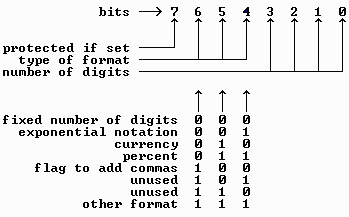
The Write portion of the program performs simple formatting, and also ensures that a column-width record is written only once. Table 6-2 shows the makeup of the numeric formatting byte used in all Lotus files.
The program example below can either read or write a Lotus 1-2-3 worksheet file. If you select Create when this program is run, it will write a worksheet file named SAMPLE.WKS suitable for reading into any version of Lotus 123. This sample file contains an assortment of labels and values. If you select Read, the program will prompt for the name of a worksheet file which it then reads and displays.
DEFINT A-Z
DECLARE SUB GetFormat (Format, Row, Column)
DECLARE SUB WriteColWidth (Column, ColWidth)
DECLARE SUB WriteInteger (Row, Column, ColWidth, Temp)
DECLARE SUB WriteLabel (Row, Column, ColWidth, Msg$)
DECLARE SUB WriteNumber (Row, Col, ColWidth, Fmt$, Num#)
DIM SHARED CellFmt AS STRING * 1 'to read one byte
DIM SHARED ColNum(40) 'max columns to write
DIM SHARED FileNum 'the file number to use
CLS
PRINT "Read an existing 123 file or ";
PRINT "Create a sample file (R/C)? "
LOCATE , , 1
DO
X$ = UCASE$(INKEY$)
LOOP UNTIL X$ = "R" OR X$ = "C"
LOCATE , , 0
PRINT X$
IF X$ = "R" THEN
'----- read an existing file
INPUT "Lotus file to read: ", FileName$
IF INSTR(FileName$, ".") = 0 THEN
FileName$ = FileName$ + ".WKS"
END IF
PRINT
'----- get the next file number and open the file
FileNum = FREEFILE
OPEN FileName$ FOR BINARY AS #FileNum
DO UNTIL Opcode = 1 'until End of File code
GET FileNum, , Opcode 'get the next opcode
GET FileNum, , Length 'and the data length
SELECT CASE Opcode 'filter the Opcodes
CASE 0 'Beginning of File record
PRINT "Beginning of file, Lotus ";
GET FileNum, , Temp
SELECT CASE Temp
CASE 1028
PRINT "1-2-3 version 1.0 or 1A"
CASE 1029
PRINT "Symphony version 1.0"
CASE 1030
PRINT "123 version 2.x"
CASE ELSE
PRINT "NOT a Lotus File!"
END SELECT
CASE 1 'End of File
PRINT "End of File"
CASE 12 'Blank cell
'Note that Lotus saves blank cells only if
'they are formatted or protected.
CALL GetFormat(Format, Row, Column)
PRINT "Blank: Format ="; Format,
PRINT "Row ="; Row,
PRINT "Col ="; Column
CASE 13 'Integer
CALL GetFormat(Format, Row, Column)
GET FileNum, , Temp
PRINT "Integer: Format ="; Format,
PRINT "Row ="; Row,
PRINT "Col ="; Column,
PRINT "Value ="; Temp
CASE 14 'Floating point
CALL GetFormat(Format, Row, Column)
GET FileNum, , Number#
PRINT "Number: Format ="; Format,
PRINT "Row ="; Row,
PRINT "Col ="; Column,
PRINT "Value ="; Number#
CASE 15 'Label
CALL GetFormat(Format, Row, Column)
'Create a string to hold the label. 6 is
'subtracted to exclude the Format, Column,
'and Row information.
Info$ = SPACE$(Length - 6)
GET FileNum, , Info$ 'read the label
GET FileNum, , CellFmt$ 'eat the CHR$(0)
PRINT "Label: Format ="; Format,
PRINT "Row ="; Row,
PRINT "Col ="; Column, Info$
CASE 16 'Formula
CALL GetFormat(Format, Row, Column)
GET FileNum, , Number# 'read cell value
GET FileNum, , Length 'and formula length
SEEK FileNum, SEEK(FileNum) + Length 'skip formula
PRINT "Formula: Format ="; Format,
PRINT "Row ="; Row,
PRINT "Col ="; Column,
PRINT "Value ="; Number#
CASE ELSE
Dummy$ = SPACE$(Length) 'skip the record
GET FileNum, , Dummy$ 'read it in
PRINT "Opcode: "; Opcode 'show its Opcode
END SELECT
'----- pause when the screen fills
IF CSRLIN > 21 THEN
PRINT
PRINT "Press
There are several points worth noting about this program. First, Lotus
label strings are always terminated with a CHR$(0) zero byte, which is the
same method used by DOS and the C language. Therefore, the WriteLabel
subprogram adds this byte, which is also included as part of the length
word that follows the Opcode.
In the WriteNumber subprogram, the 1-byte format code is either 127 to
default to unformatted, or bit-coded to indicate fixed, currency, or
percent formatting. WriteNumber expects a format string such as "F3" which
indicates fixed-point with three decimal positions, or "P1" for percent
formatting using one decimal place. If you instead use "C", WriteNumber
will use a fixed 2-decimal point currency format.
Earlier I pointed out the extra work is needed to write a constant
value to a binary file, because only variables may be used with PUT #.
This is painfully clear in each of the Write subprograms, where the integer
variable Temp is repeatedly assigned to new values. We can only hope that
Microsoft will see fit to remove this arbitrary limitation in a later
version of BASIC.
Finally, note the use of the fixed-length string CellFmt$. Although
some language support a one-byte numeric variable type, BASIC does not.
Therefore, to read and write these values you must use a fixed-length
string. To determine the value after reading a file you will use ASC, and
to assign a value prior to writing it you instead use CHR$. For example,
to assign CellFmt$ to the byte value 123 use CellFmt$ = CHR$(123).
Navigating Your Files
BASIC offers a number of file-related functions to determine how long a
file is, the current DOS seek location where the next read or write will
take place, and also if that location is at the end of the file. These are
LOF, LOC and SEEK, and EOF respectively. LOF stands for Length Of File,
LOC means current Location, and EOF is End Of File. The SEEK statement is
also available to force the next file access to occur at a specified place
within the file. All of these require a file number argument to indicate
which file is being referred to.
The EOF Function
The EOF function is most useful when reading sequential text files, and it
avoids BASIC's "Input past end" error that would otherwise result from
trying to read past the end of the available data. The following short
complete program reads a text file and displays it contents, and shows how
EOF is used for this purpose.
OPEN FileName$ FOR INPUT AS #1
WHILE NOT EOF(1)
LINE INPUT #1, This$
PRINT This$
WEND
CLOSE
Notice the use of the NOT operator in this example. The EOF function
returns an integer value of either -1 or 0, to indicate true (at the end of
the file) or false. Therefore, NOT -1 is equal to 0 (False), and NOT 0 is
equal to -1 (True). This use of bit manipulation was described earlier in
Chapter 2.
EOF can also be used with binary and random access files for the same
purpose. In fact, EOF may be even more useful in those cases, because
BASIC does not create an error when you attempt to read past the end as it
does for sequential files. Indeed, once you go past the end of a binary or
random access file, BASIC simply fills the variables being read with zero
bytes. Without EOF there is no way to distinguish between zeros returned
by BASIC because you went past the end of the file and zeros that were read
as legitimate data.
The EOF function was originally needed with DOS 1.0 for a program to
determine when the end of the file was reached. That version of DOS always
wrote all data in multiples of 128 bytes, and all file directory entries
also were listed with lengths being a multiple of 128. [That is, a file
which contains only ten bytes of data will be reported by DIR as being 128
bytes long.] To indicate the true end of the file, a CHR$(26) end of file
marker was placed just past the last byte of valid data. Thus, EOF was
originally written to search for a byte with that value, and return True
when it was found.
Most modern applications do not use an EOF character, and instead rely
on the file length that is stored in the file's directory entry. However,
some older programs still write a CHR$(26) at the end of the data, and DOS'
COPY CON command does this as well. Therefore, BASIC's EOF will return a
True value when this character is encountered, even if there is still more
data to be read in the file. In fact, you can provide a minimal amount of
data security by intentionally writing a CHR$(26) at or near the beginning
of a sequential file. If someone then uses the DOS TYPE command to view
the file, only what precedes the EOF marker will be displayed.
Another implication of EOF characters in BASIC surfaces when you open
a sequential file for append mode. BASIC makes a minimal attempt to locate
an EOF character, and if one exists it begins appending on top of it.
After all, if writing started just past the EOF byte, a subsequent LINE
INPUT would fail when it reached that point. Likewise, an EOF test would
return true and the program would stop reading at that location in the
file. Therefore, BASIC checks the last few bytes in the file when you open
for append, to see if an EOF marker is present. However, if the marker is
much earlier in a large file, BASIC will not see it.
When EOF is used with serial communications, it returns 0 until a
CHR$(26) byte is received, at which point it continues to return -1 until
the communications port is closed.
The LOF Function
The LOF function simply returns the current length of the file, and that
too can be used as a way to tell when you have reached the end. In the
random access FIELD example program shown earlier, LOF was used in
conjunction with the record length to determine the number of records in
the file. Since the length of most random access files is directly related
to [and evenly divisible by] the number of records in the file, simple
division can be used to determine how many records there are. The formula
is NumRecords = LOF(FileNum) \ RecLength.
Understand that when used with sequential and binary files, LOF
returns the length of the file in bytes. But with a random access file,
LOF instead provides the number of records.
LOF can also be used as a crude way to see if a file exists. Even
though this is done much more effectively and elegantly with assembly
language or CALL Interrupt, the short example below shows how LOF can be
used for this purpose.
FUNCTION Exist% (FileName$) STATIC
FileNum = FREEFILE
OPEN FileName$ FOR BINARY AS #FileNum
Length = LOF(FileNum)
CLOSE #FileNum
IF Length = 0 THEN 'it probably wasn't there
Exist% = 0 'return False to show that
KILL FileName$ 'and delete what we created
ELSE
Exist% = -1 'otherwise return True
END IF
END FUNCTION
Besides being clunky, this program also has a serious flaw: If the file
does exist but has a perfectly legal length of zero, this function will say
it doesn't exist and then delete it! As I said, this method is crude, but
a lot of programmers have used it.
The LOC and SEEK Functions
LOC and SEEK are closely related, in that they return information about
where you are in the file. However, LOC reports the position of the last
read or write, and SEEK tells where the next one will occur. As with LOF,
LOC and SEEK return byte values for files that were opened for sequential
or binary access, and record numbers when used with random access files.
In practice, LOC is of little value, especially when you are
manipulating sequential files. For reasons that only Microsoft knows, LOC
returns the number of the last byte read or written, but divided by 128.
Since no program I know of treats sequential files as containing 128-byte
records, I cannot imagine how this could be useful. Further, since LOC
returns the location of the last read or write, it never reflects the
true position in the file.
When used with communications, LOC reports the number of characters in
the receive buffer that are currently waiting to be read, which is useful.
When used with INPUT$ #, LOC provides a handy way to retrieve all of the
characters present in the buffer at one time. This is shown in context
below, and the example assumes that the communications port has already
been opened.
NumChars = LOC(1)
IF NumChars THEN
This$ = INPUT$(NumChars, #1)
END IF
The SEEK function always returns the current file position, which is the
point at which the next read or write will take place. One good use for
SEEK is to read the current location in a sequential file, to allow a
program to walk backwards through the file later. For example, if you need
to create a text file browsing program, there is no other way to know where
the previous line of a file is located. A short program that shows this in
context follows in the section that describes the SEEK statement.
The SEEK Statement
Where the SEEK function lets you determine where you are currently in a
file, the SEEK statement lets you move to any arbitrary position. As you
might imagine, SEEK as a statement is similar to the function version in
that it assumes a byte value when used with sequential and binary files,
and a record number with random access files.
SEEK can be very useful in a variety of situations, and in particular
when indexing random access files. When an indexing system is employed,
selected portions of a data file are loaded into memory where they can be
searched very quickly. Since the location of the index information being
searched corresponds to the record number of the complete data record, the
record can be accessed with a single GET #. This was described briefly in
the discussion of the BASIC PDS ISAM options in Chapter 5. Thus, once the
record number for a given entry has been identified, the SEEK statement (or
the SEEK argument in the GET # command) is used to access that particular
record.
For this example, though, I will instead show how SEEK can be used
with a sequential file. The following complete program provides the
rudiments of a text file browser, but this version displays only one line
at a time. It would be fairly easy to expand this program to display
entire screenfuls of text, and I leave that as an exercise for you.
The program begins by prompting for a file name, and then opens that
file for sequential input. The maximum number of lines that can be
accommodated is set arbitrarily at 5000, though you will not be able to
specify more than 16384 unless you compile with the /ah option. The long
integer Offset&() array is used to remember where each line encountered so
far in the file begins, and 16384 is the maximum number of elements that
can fit into a single 64K array. For a typical text file with line lengths
that average 60 characters, 16384 lines is nearly 1MB of text.
When you run the program, it expects only the up and down arrow keys
to advance and go backwards through the file, the Home key to jump to the
beginning, or the Escape key to end the program. Notice that the words
"blank line" are printed when a blank line is encountered, just so you can
see that something has happened.
DEFINT A-Z
CONST MaxLines% = 5000
REDIM Offset&(1 TO MaxLines%)
CLS
PRINT "Enter the name of file to browse: ";
LINE INPUT "", FileName$
OPEN FileName$ FOR INPUT AS #1
Offset&(1) = 1 'initialize to offset 1
CurLine = 1 'and start with line 1
WHILE Action$ <> CHR$(27) 'until they press Escape
SEEK #1, Offset&(CurLine) 'seek to the current line
LINE INPUT #1, Text$ 'read that line
Offset&(CurLine + 1) = SEEK(1) 'save where the next
' line starts
CLS
IF LEN(Text$) THEN 'if it's not blank
PRINT Text$ 'print the line
ELSE 'otherwise
PRINT "(blank line)" 'show that it's blank
END IF
DO 'wait for a key
Action$ = INKEY$
LOOP UNTIL LEN(Action$)
SELECT CASE ASC(RIGHT$(Action$, 1))
CASE 71 'Home
CurLine = 1
CASE 72 'Up arrow
IF CurLine > 1 THEN
CurLine = CurLine - 1
END IF
CASE 80 'Down arrow
IF (NOT EOF(1)) AND CurLine < MaxLines% THEN
CurLine = CurLine + 1
END IF
CASE ELSE
END SELECT
WEND
CLOSE
END
You should be aware that BASIC does not prevent you from using SEEK to go
past the end of a file that has been opened for Binary access. If you do
this and then write any data, DOS will actually extend the file to include
the data that was just written. Therefore, it is important to understand
that any data that lies between the previous end of the file and the newly
added data will be undefined. When a file is deleted DOS simply abandons
the sectors that held its data, and makes them available for later use.
But whatever data those sectors contained remains intact. When you later
expand a file this way using SEEK, the old abandoned sector contents are
incorporated into the file. Even if the sectors that are allocated were
never written to previously, they will contain the &HF6 bytes that DOS'
FORMAT.COM uses to initialize a disk.
You can turn this behavior into an important feature, and in some
cases recreate a file that was accidentally truncated. If you erase a file
by mistake, it is possible to recover it using the Norton Utilities or a
similar disk utility program. But when an existing file is opened for
output, DOS truncates it to a length of zero. The following program shows
the steps necessary to reconstruct a file that has been destroyed this way.
OPEN FileName$ FOR BINARY AS #1
SEEK #1, 30000
PUT #1, , X%
CLOSE #1
In this case, the file is restored to a length of 30000, and you can use
larger or smaller values as appropriate. Understand that there is no
guarantee that DOS will reassign the same sectors to the file that it
originally used. But I have seen this trick work more than once, and it is
at least worth a try.
In a similar fashion, you can reduce the size of a file by seeking to
a given location and then writing zero bytes there. Since BASIC provides
no way to write zero bytes to a file, some additional trickery is needed.
This will be described in Chapter 11 in the section that discusses using
CALL Interrupt to access DOS and BIOS services.
Advanced File Techniques
There are a number of clever file-related tricks that can be performed
using only BASIC programming. Some of these tricks help you to improve on
BASIC's speed, and others let you do things that are not possible using the
normal and obvious methods. BASIC is no slower than other languages when
reading and writing large amounts of data, and indeed, the bottleneck is
frequently DOS itself. Further, if you can reduce the amount of data that
is written, your files will be smaller as well. With that in mind, let's
look at some ways to further improve your programs.
Speeding Up File Access
The single most important way to speed up your programs is to read and
write large amounts of data in one operation. The normal method for saving
a numeric or TYPE array is to write each element to disk in a loop. But
when there are many thousands of elements, a substantial amount of overhead
is incurred just from BASIC's repeated calls to DOS. There are several
solutions you can consider, each with increasing levels of complexity.
BLOAD and BSAVE
The simplest way to read and write a large amount of contiguous data is
with BLOAD and BSAVE. BSAVE takes a "snapshot" of any contiguous area of
memory up to 64K in size, and saves it to disk in a single operation. When
an application calls DOS to read or write a file, it furnishes DOS with the
segment and address where the data is to be loaded or saved from, and also
the number of bytes. BLOAD and BSAVE provide a simple interface to the DOS
read and write services, and they can be used to load and save numeric
arrays up to 64K in size, as well as screen images.
[I have seen a number of messages in the MSBASIC forum on CompuServe
stating that BSAVE and BLOAD do not work with compressed disks. Many of
those messages have come from Microsoft technical support, and I have no
reason to doubt them. It may be that only VB/DOS has this problem, but I
have no way to test QB and PDS because I don't use disk compression.]
A file that has been written using BSAVE includes a 7-byte header that
identifies it as a BSAVE file, and also shows where it was saved from and
how many bytes it contains. BLOAD requires this header, and thus cannot be
used with any arbitrary type of file. But when used together, these
commands can be as much as ten times faster than a FOR/NEXT loop.
The example below creates and then saves a single precision array, and
then loads it again to prove the process worked.
DEFINT A-Z
CONST NumEls% = 20000
REDIM Array(1 TO NumEls%) 'create the array
FOR X = 1 TO NumEls% 'file it with values
Array(X) = X
NEXT
DEF SEG = VARSEG(Array(1)) 'set the BSAVE segment
BSAVE "ARRAY.DAT", VARPTR(Array(1)), NumEls% * LEN(Array(1))
REDIM Array(1 TO NumEls%) 'recreate the array
DEF SEG = VARSEG(Array(1)) 'the array may have moved
BLOAD "ARRAY.DAT", VARPTR(Array(1))
FOR X = 1 TO NumEls% 'prove the data is valid
IF Array(X) <> X THEN
PRINT "Error in element"; X
END IF
NEXT
END
Because BSAVE and BLOAD use the current DEF SEG setting to know the segment
the data is in, VARSEG is used with the first element of the array. Once
the correct segment has been established, BSAVE is given the name of the
file to save, the starting address, and the number of bytes of data. As
with the TYPE variable example shown earlier, LEN is ideal here as well to
help calculate the number of bytes that must be saved. In this case, each
integer array element is two bytes long, and BASIC multiplies the constants
NumEls% and LEN(Array(1)) when the program is compiled. Therefore, no
additional code is added to the program to calculate this value at runtime.
Once the array has been saved it is redimensioned, which effectively
clears it to all zero values prior to reloading. Notice that DEF SEG is
used again before the BLOAD statement. This is an important point, because
there is no guarantee that BASIC will necessarily allocate the same block
of memory the second time. If a file is loaded into the wrong area of
memory, your program is sure to crash or at least not work correctly.
Also note that BLOAD always loads the entire file, and a length
argument is not needed or expected. This brings up an important issue: how
can you determine how large to dimension an array prior to loading it? The
answer, as you may have surmised, is to open the file for binary access and
read the length stored in the BSAVE header. All that's needed is to know
how the header is organized, as the following program reveals.
DEFINT A-Z
TYPE BHeader
Header AS STRING * 1
Segment AS INTEGER
Address AS INTEGER
Length AS INTEGER
END TYPE
DIM BLHeader AS BHeader
OPEN "ARRAY.DAT" FOR BINARY AS #1
GET #1, , BLHeader
CLOSE
IF ASC(BLHeader.Header) <> &HFD THEN
PRINT "Not a valid BSAVE file"
END
END IF
LongLength& = BLHeader.Length
IF LongLength& < 0 THEN
LongLength& = LongLength& + 65536
END IF
NumElements = LongLength& \ 2
REDIM Array(1 TO NumElements)
DEF SEG = VARSEG(Array(1))
BLOAD "ARRAY.DAT", VARPTR(Array(1))
END
Even though the original segment and address from which the file was saved
is in the BSAVE header, that information is not used here. In most
situations you will always provide BLOAD with an address to load the file
to. However, if the address is omitted, BASIC uses the segment and address
stored in the file, and ignores the current DEF SEG setting. This would be
useful when handling text and graphics images which are always loaded to
the same segment from which they were originally saved. But in general I
recommend that you always define an explicit segment and address.
There are a few other points worth elaborating on as well. First, the
program examines the first byte in the file to be sure it is the special
value &HFD which identifies a BSAVE file. The ASC function is required for
that, since the only way to define a TYPE component one byte long is as a
string.
Second, the length is stored as an unsigned integer, which cannot be
manipulated directly in a BASIC program if its value exceeds 32767. As you
learned in Chapter 2, integer values larger than 32767 are treated by BASIC
as signed, and in this case they are considered negative. Therefore, the
value is first assigned to a long integer, which is then tested for a value
less than zero. If it is indeed negative, 65536 is added to the variable
to convert it to an equivalent positive number. Note that the length in a
BSAVE header does not include the header length; only the data itself is
considered.
If you single-step through this program after running the earlier one
that created the file, you will see that the code that adds 65536 is
executed, because the header shows that the file contains 40000 bytes.
There are two limitations to using BSAVE and BLOAD this way. One
problem is that you may not want the header to be attached to the file.
The other, more important problem is that BASIC allows arrays to exceed
64K. Saving a single huge array in multiple files is clumsy, and
contributes to the clutter on your disks. The header issue is less
important, because you can always access the file with normal binary
statements after using a SEEK to skip over the header. But the huge array
problem requires some heavy ammunition.
One final point worth mentioning is that BSAVE and BLOAD assume a .BAS
file name extension if none is given. This is incredibly stupid, since the
contents of a BSAVE file have no relationship to a BASIC source file.
Therefore, to save a file with no extension at all you must append a period
to the name: BSAVE "MYFILE.", Address, Length.
Beyond BSAVE
The program that follows includes both a demonstration and a pair of
subprograms that let you save any data regardless of its size or location.
These routines are primarily intended for saving huge numeric and TYPE
arrays, but there is no reason they couldn't be used for other purposes.
However, they cannot be used with conventional variable-length string
arrays, because the data in those arrays is not contiguous. The file is
processed in 16K blocks using multiple passes, and the actual saving and
loading is performed by calling BASIC's internal PUT # and GET # routines.
DEFINT A-Z
'NOTE: This program must be compiled with the /ah option.
DECLARE SUB BigLoad (FileName$, Segment, Address, Bytes&)
DECLARE SUB BigSave (FileName$, Segment, Address, Bytes&)
DECLARE SUB BCGet ALIAS "B$GET3" (BYVAL FileNum, BYVAL Segment, _
BYVAL Address, BYVAL NumBytes)
DECLARE SUB BCPut ALIAS "B$PUT3" (BYVAL FileNum, BYVAL Segment, _
BYVAL Address, BYVAL NumBytes)
CONST NumEls% = 20000
REDIM Array&(1 TO NumEls%)
NumBytes& = LEN(Array&(1)) * CLNG(NumEls%)
FOR X = 1 TO NumEls% 'fill the array
Array&(X) = X
NEXT
Segment = VARSEG(Array&(1)) 'save the array
Address = VARPTR(Array&(1))
CALL BigSave("ARRAY.DAT", Segment, Address, NumBytes&)
REDIM Array&(1 TO NumEls%) 'clear the array
Segment = VARSEG(Array&(1)) 'reload the array
Address = VARPTR(Array&(1))
CALL BigLoad("ARRAY.DAT", Segment, Address, NumBytes&)
FOR X = 1 TO NumEls% 'prove this all worked
IF Array&(X) <> X THEN
PRINT "Error in element"; X
END IF
NEXT
END
SUB BigLoad (FileName$, DataSeg, Address, Bytes&) STATIC
FileNum = FREEFILE
OPEN FileName$ FOR BINARY AS #FileNum
NumBytes& = Bytes& 'work with copies to
Segment = DataSeg 'protect the parameters
DO
IF NumBytes& > 16384 THEN
CurrentBytes = 16384
ELSE
CurrentBytes = NumBytes&
END IF
CALL BCGet(FileNum, Segment, Address, CurrentBytes)
NumBytes& = NumBytes& - CurrentBytes
Segment = Segment + &H400
LOOP WHILE NumBytes&
CLOSE #FileNum
END SUB
SUB BigSave (FileName$, DataSeg, Address, Bytes&) STATIC
FileNum = FREEFILE
OPEN FileName$ FOR BINARY AS #FileNum
NumBytes& = Bytes& 'work with copies to
Segment = DataSeg 'protect the parameters
DO
IF NumBytes& > 16384 THEN
CurrentBytes = 16384
ELSE
CurrentBytes = NumBytes&
END IF
CALL BCPut(FileNum, Segment, Address, CurrentBytes)
NumBytes& = NumBytes& - CurrentBytes
Segment = Segment + &H400
LOOP WHILE NumBytes&
CLOSE #FileNum
END SUB
Although BASIC lets you save and load only single variables or array
elements, its internal library routines can work with data of nearly any
size. And since TYPE variables can be as large as 64K, these routines must
be able to accommodate data at least that big. Therefore, BASIC's usual
restriction on what you can and cannot read or write to disk with GET # and
PUT # is an arbitrary one.
Accessing BASIC's internal routines requires that you declare them
using ALIAS, since it is illegal to call a routine that has a dollar sign
in its name. As you can see, these routines expect their parameters to be
passed by value, and this is handled by the DECLARE statements. Normally,
you cannot call these routines from within the QB editing environment. But
if you separate the two subprograms and place them into a different module,
that module can be compiled and added to a Quick Library. That is, the
subprograms can be together in one file, but not with the demo that calls
them. Be sure to add the two DECLARE statements that define B$PUT3 and
B$GET3 to that module as well.
The long integer array this program creates exceeds the normal 64K
limit, so the /ah compiler switch must be used. Notice in the BigLoad and
BigSave subprograms that copies are made of two of the incoming parameters.
If this were not done, the subprograms would change the passed values,
which is a bad practice in this case. Also, notice how the segment value
that is used for saving and loading is adjusted through each pass of the DO
loop. Since the data is saved in 16K blocks, the segment must be increased
by 16384 \ 16 = 1024 for each pass. The use of an equivalent &H value here
is arbitrary; I translated this program from another version written in
assembly language that used Hex for that number.
Processing Large Files
Although the solutions shown so far are valuable when saving or loading
large amounts of data, that is as far as they go. In many cases you will
also need to process an entire existing file. Some examples are a program
that copies or encrypts files, or a routine that searches an entire file
for a string of text. As with saving and loading files, processing a file
or portion of a file in large blocks is always faster and more effective
than processing it line by line.
The file copying subprogram below accepts source and destination file
names, and copies the data in 4K blocks. The 4K size is significant,
because it is large enough to avoid many repeated calls to DOS, and small
enough to allow a conventional string to be used as a file buffer. As with
the BigLoad and BigSave routines, the file is processed in pieces. Also,
for simplicity a complete file name and path is required. Although the DOS
COPY command lets you use a source file name and a destination drive or
path only, the CopyFile subprogram requires that entire file names be given
for both.
DEFINT A-Z
DECLARE SUB CopyFile (InFile$, OutFile$)
SUB CopyFile (InFile$, OutFile$) STATIC
File1 = FREEFILE
OPEN InFile$ FOR BINARY AS #File1
File2 = FREEFILE
OPEN OutFile$ FOR BINARY AS #File2
Remaining& = LOF(File1)
DO
IF Remaining& > 4096 THEN
ThisPass = 4096
ELSE
ThisPass = Remaining&
END IF
Buffer$ = SPACE$(ThisPass)
GET #File1, , Buffer$
PUT #File2, , Buffer$
Remaining& = Remaining& - ThisPass
LOOP WHILE Remaining&
CLOSE File1, File2
END SUB
Once the basic structure of a routine that processes an entire file has
been established, it can be easily modified for other purposes. For
example, CopyFile can be altered to encrypt an entire file, search a file
for a text string, and so forth. A few of these will be shown here. Note
that for simplicity and clarity, CopyFile creates a new buffer with each
pass through the loop. You could avoid that by preceding the assignment
with IF LEN(Buffer$) <> ThisPass THEN or similar logic, to avoid creating
the buffer when it already exists and is the correct length.
The BufIn function and example below serves as a very fast LINE INPUT
replacement. Even though BASIC's own file input routines provide buffering
for increased speed, they are not as effective as this function. In my
measurements I have found BufIn to be consistently four to five times
faster than BASIC's LINE INPUT routine when reading large (greater than
50K) files. With smaller files the improvement is less, but still
substantial.
DEFINT A-Z
DECLARE FUNCTION BufIn$ (FileName$, Done)
LINE INPUT "Enter a file name: ", FileName$
'---- Show how fast BufIn$ reads the file.
Start! = TIMER
DO
This$ = BufIn$(FileName$, Done)
IF Done THEN EXIT DO
LOOP
Done! = TIMER
PRINT "Buffered input: "; Done! - Start!
'---- Now show how long BASIC's LINE INPUT takes.
Start! = TIMER
OPEN FileName$ FOR INPUT AS #1
DO
LINE INPUT #1, This$
LOOP UNTIL EOF(1)
Done! = TIMER
PRINT " BASIC's INPUT: "; Done! - Start!
CLOSE
END
FUNCTION BufIn$ (FileName$, Done) STATIC
IF Reading GOTO Process 'now reading, jump in
'----- initialization
Reading = -1 'not reading so start now
Done = 0 'clear Done just in case
CR$ = CHR$(13) 'define for speed later
FileNum = FREEFILE 'open the file
OPEN FileName$ FOR BINARY AS #FileNum
Remaining& = LOF(FileNum) 'byte count to be read
IF Remaining& = 0 GOTO ExitFn 'empty or nonexistent file
BufSize = 4096 'bytes to read each pass
Buffer$ = SPACE$(BufSize) 'assume BufSize bytes
DO 'the main outer loop
IF Remaining& < BufSize THEN 'read only what remains
BufSize = Remaining& 'resize the buffer
IF BufSize < 1 GOTO ExitFn 'possible only if EOF byte
Buffer$ = SPACE$(BufSize) 'create the file buffer
END IF
GET #FileNum, , Buffer$ 'read a block
BufPos = 1 'start at the beginning
DO 'walk through buffer
CR = INSTR(BufPos, Buffer$, CR$) 'look for a Return
IF CR THEN 'we found one
SaveCR = CR 'save where
BufIn$ = MID$(Buffer$, BufPos, CR - BufPos)
BufPos = CR + 2 'skip inevitable LF
EXIT FUNCTION 'all done for now
ELSE 'back up in the file
'---- if at the end and no CHR$(13) was found
' return what remains in the string
IF SEEK(FileNum) >= LOF(FileNum) THEN
Output$ = MID$(Buffer$, SaveCR + 2)
'---- trap a trailing EOF marker
IF RIGHT$(Output$, 1) = CHR$(26) THEN
Output$ = LEFT$(Output$, LEN(Output$) - 1)
END IF
BufIn$ = Output$ 'assign the function
GOTO ExitFn 'and exit now
END IF
Slop = BufSize - SaveCR - 1 'calc buffer excess
Remaining& = Remaining& + Slop 'calc file excess
SEEK #FileNum, SEEK(FileNum) - Slop
END IF
Process:
LOOP WHILE CR 'while more in buffer
Remaining& = Remaining& - BufSize
LOOP WHILE Remaining& 'while more in the file
ExitFn:
Reading = 0 'we're not reading anymore
Done = -1 'show that we're all done
CLOSE #FileNum 'final clean-up
END FUNCTION
As you can see, the BufIn function opens the file, reads each line of text,
and then closes the file and sets a flags when it has exhausted the text.
Even though this example show BufIn being invoked in a DO loop, it can be
used in any situation where LINE INPUT would normally be used. As long as
you declare the function, it may be added to programs of your own and used
when sequential line-oriented data must be read as quickly as possible.
I don't think each statement in the BufIn function warrants a complete
explanation, but some of the less obvious aspects do. BufIn operates by
reading the file in 4K blocks in an outer loop, and each block is then
examined for a CHR$(13) line terminator in an inner loop that uses INSTR.
INSTR happens to be extremely fast, and it is ideal when used this way to
search a string for a single character.
The only real complication is when a portion of a string is in the
buffer, because that requires seeking backwards in the file to the start of
the string. Other, less important complications that also must be handled
arise from the presence of a CHR$(26) EOF marker, and a final string that
has no terminating carriage return.
I have made every effort to make this function as bullet-proof as
possible; however, it is mandatory that every carriage return in the file
be followed by a corresponding line feed. Some word processors eliminate
the line feed to indicate a "soft return" at the end of a line, as opposed
to the "hard return" that signifies the end of a paragraph. Most word
processor files use a non-standard format anyway, so that should not be
much of a problem.
The last complete program I'll present here is called TEXTFIND.BAS,
and it searches a group of files for a specified string. TEXTFIND is
particularly useful when you need to find a document, and cannot remember
its name. If you can think of a snippet of text the file might contain,
TEXTFIND will identify which files contain that text, and then display it
in context.
'----- TEXTFIND.BAS
'Copyright (c) 1991 by Ethan Winer
DEFINT A-Z
TYPE RegTypeX 'used by CALL Interrupt
AX AS INTEGER
BX AS INTEGER
CX AS INTEGER
DX AS INTEGER
BP AS INTEGER
SI AS INTEGER
DI AS INTEGER
Flags AS INTEGER
DS AS INTEGER
ES AS INTEGER
END TYPE
DIM Registers AS RegTypeX 'holds the CPU registers
TYPE DTA 'used by DOS services
Reserved AS STRING * 21 'reserved for use by DOS
Attribute AS STRING * 1 'the file's attribute
FileTime AS STRING * 2 'the file's time
FileDate AS STRING * 2 'the file's date
FileSize AS LONG 'the file's size
FileName AS STRING * 13 'the file's name
END TYPE
DIM DTAData AS DTA
DECLARE SUB InterruptX (IntNumber, InRegs AS RegTypeX, OutRegs AS RegTypeX)
CONST MaxFiles% = 1000
CONST BufMax% = 4096
REDIM Array$(1 TO MaxFiles%) 'holds the file names
Zero$ = CHR$(0) 'do this once for speed
'----- This function returns the larger of two integers.
DEF FNMax% (Value1, Value2)
FNMax% = Value1
IF Value2 > Value1 THEN FNMax% = Value2
END DEF
'----- This function loads a group of file names.
DEF FNLoadNames%
STATIC Count
'---- define a new Data Transfer Area for DOS
Registers.DX = VARPTR(DTAData)
Registers.DS = VARSEG(DTAData)
Registers.AX = &H1A00
CALL InterruptX(&H21, Registers, Registers)
Count = 0 'zero the file counter
Spec$ = Spec$ + Zero$ 'DOS needs an ASCIIZ string
Registers.DX = SADD(Spec$) 'show where the spec is
Registers.DS = SSEG(Spec$) 'use this with PDS
'Registers.DS = VARSEG(Spec$) 'use this with QB
Registers.CX = 39 'the attribute for any file
Registers.AX = &H4E00 'find file name service
'---- Read the file names that match the search specification. The Flags
' registers indicates when no more matching files are found. Copy
' each file name to the string array. Service &H4F is used to
' continue the search started with service &H4E using the same file
' specification.
DO
CALL InterruptX(&H21, Registers, Registers)
IF Registers.Flags AND 1 THEN EXIT DO
Count = Count + 1
Array$(Count) = DTAData.FileName
Registers.AX = &H4F00
LOOP WHILE Count < MaxFiles%
FNLoadNames% = Count 'return the number of files
END DEF
'----- The main body of the program begins here.
PRINT "TEXTFIND Copyright (c) 1991, Ziff-Davis Press."
PRINT
'---- Get the file specification, or prompt for one if it wasn't given.
Spec$ = COMMAND$
IF LEN(Spec$) = 0 THEN
PRINT "Enter a file specification: ";
INPUT "", Spec$
END IF
'----- Ask for the search string to find.
PRINT " Enter the text to find: ";
INPUT Find$
PRINT
Find$ = UCASE$(Find$) 'ignore capitalization
FindLength = LEN(Find$) 'see how long Find$ is
IF FindLength = 0 THEN END
Count = FNLoadNames% 'load the file names
IF Count = 0 THEN
PRINT "No matching files"
END
END IF
'----- Isolate the drive and path if given.
FOR X = LEN(Spec$) TO 1 STEP -1
Char = ASC(MID$(Spec$, X))
IF Char = 58 OR Char = 92 THEN '":" or "\"
Path$ = LEFT$(UCASE$(Spec$), X)
EXIT FOR
END IF
NEXT
FOR X = 1 TO Count 'for each matching file
Array$(X) = LEFT$(Array$(X), INSTR(Array$(X), Zero$) - 1)
PRINT "Reading "; Path$; Array$(X)
OPEN Path$ + Array$(X) FOR BINARY AS #1
Length& = LOF(1) 'get and save its length
IF Length& < FindLength GOTO NextFile
BufSize = BufMax% 'assume a 4K text buffer
IF BufSize > Length& THEN BufSize = Length&
Buffer$ = SPACE$(BufSize) 'create the file buffer
LastSeek& = 1 'seed the SEEK location
BaseAddr& = 1 'and the starting offset
Bytes = 0 'how many bytes to search
DO 'the file read loop
BaseAddr& = BaseAddr& + Bytes 'track block start
IF Length& - LastSeek& + 1 >= BufSize THEN
Bytes = BufSize 'at least BufSize bytes left
ELSE 'get just what remains
Bytes = Length& - LastSeek& + 1
Buffer$ = SPACE$(Bytes) 'adjust the buffer size
END IF
SEEK #1, LastSeek& 'seek back in the file
GET #1, , Buffer$ 'read a chunk of the file
Start = 1 'this is the INSTR loop for
DO 'searching within the buffer
Found = INSTR(Start, UCASE$(Buffer$), Find$)
IF Found THEN 'print it in context
Start = Found + 1 'to resume using INSTR later
PRINT 'add a blank line for clarity
PRINT MID$(Buffer$, FNMax%(1, Found - 20), FindLength + 40)
PRINT
PRINT "Continue searching "; Array$(X);
PRINT "? (Yes/No/Skip): ";
WHILE INKEY$ <> "": WEND 'clear kbd buffer
DO
KeyHit$ = UCASE$(INKEY$) 'then get a response
LOOP UNTIL KeyHit$ = "Y" OR KeyHit$ = "N" OR KeyHit$ = "S"
PRINT KeyHit$ 'echo the letter
PRINT
IF KeyHit$ = "N" THEN '"No"
END 'end the program
ELSEIF KeyHit$ = "S" THEN '"Skip"
GOTO NextFile 'go to the next file
END IF
END IF
'search for multiple hits
LOOP WHILE Found 'within the file buffer
IF Bytes = BufSize THEN 'still more file to examine
'---- Back up a bit in case Find$ is there but straddling the buffer
' boundary. Then update the internal SEEK pointer.
BaseAddr& = BaseAddr& - FindLength
LastSeek& = BaseAddr& + Bytes
END IF
LOOP WHILE Bytes = BufSize AND BufSize = BufMax%
NextFile:
CLOSE #1
Buffer$ = "" 'clear the buffer for later
NEXT
END
TEXTFIND may be run either in the BASIC editor or compiled to an executable
file and then run. If you are using QuickBASIC you will need either QB.QLB
or QB.LIB because the program relies on CALL Interrupt to interface with
DOS. To start QB and load the QB.QLB library simply enter qb /l. If you
are compiling the program, specify the QB.LIB file when it is linked:
link textfind , , nul , qb;
For BASIC 7 users the appropriate library names are QBX.QLB and QBX.LIB
respectively. [And for VB/DOS the libraries are VBDOS.QLB and VBDOS.LIB.]
When you run TEXTFIND you may either enter a file specification such
as *.BAS or LET*.TXT or the like as a command line argument, or enter
nothing and let the program prompt you. In either case, you will then be
asked to enter the text string you're searching for. TEXTFIND will search
through every file that matches the file specification, and display the
string in context if it is found.
As written, TEXTFIND shows the 20 characters before and after the
string. You may of course modify that to any reasonable number of
characters. Simple change the 20 and 40 values in the corresponding PRINT
statement. The first value is the number of characters on either side to
display, and the second must be twice that to accommodate the length of the
search string itself. Note the use of FNMax% which ensures that the
program will not try to print characters before the start of the buffer.
If the text were found at the very start of the file, attempting to print
the 20 characters that precede it will create an "Illegal function call"
error at the MID$ function.
Each time the string is found and displayed you are offered the
opportunity to continue searching the same file, ending the program, or
skipping to the next file.
Although CALL Interrupt will be discussed in depth in Chapter 11,
there are several aspects of the program's operation that require
elaboration here. First, any program that uses the DOS Find First and Find
Next services to read a list of file names must establish a small block of
memory as a Disk Transfer Area (DTA). The DTA holds pertinent information
about each file that is found, such as its date, time, size, and attribute.
In this case, though, we are merely interested in each file's name. DOS
service &H1A is used to assign the DTA to a TYPE variable that is designed
to facilitate extracting this information. BASIC PDS [and VB/DOS] include
the DIR$ function which lets you read file names, but I have used CALL
Interrupt here so the program will also work with QuickBASIC.
Second, DEF FN-style functions are used instead of formal functions
because they are smaller and slightly faster. The FNLoadNames function is
responsible for loading all of the file names into the string array, and it
returns the number of files that were found. After each call to DOS to
find the next matching name, the Carry flag is tested. DOS often uses the
carry flag to indicate the success or failure of an operation, and in this
case it is set to True when there are no more files.
Note how a CHR$(0) is appended to the file specification when calling
DOS, to indicate the end of the string. Similarly, DOS returns each file
name terminated with a zero byte, and INSTR is used to find that byte.
Then, only those characters to the left of the zero are kept using LEFT$.
Third, the block of code that isolates the drive and path name if
given is needed because the DOS Find services return only a file name. If
you enter D:\ANYDIR\*.* as a file specification, that is then passed to
DOS. But DOS returns only the names it finds that match the specification.
Therefore, the drive and path must be added to the beginning of each name,
to create a complete file name for the subsequent OPEN command.
Finally, as with the BufIn function, the files are read in 4K (4096-
byte) blocks, except for the last block which of course may be smaller. A
smaller block is also used when the file is less than 4K in length. Within
each outer read loop, an inner loop is employed to search for the text, and
again INSTR is used because of its speed. As written, TEXTFIND looks for
the specified string without regard to capitalization. You can remove that
feature by eliminating the UCASE$ function in both the INSTR loop, and at
the point in the program where Find$ is capitalized.
Minimizing Disk Usage
While improving your program's performance is certainly a desireable
pursuit, equally important is minimizing the amount of space needed to
store data. Besides the obvious savings in disk space, the less data there
is, the faster it can be loaded and saved. There are a number of simple
tricks you can use to reduce the size of your data files, and some types of
data lend themselves quite nicely to compaction techniques.
Date information is particularly easy to reduce. At the minimum, you
should remove the separating slashes or dashes--perhaps with a dedicated
function. For example, you would convert "06-22-91" to "062291". Even
better, however, is to convert each digit pair to an equivalent single
CHR$() byte, and also swap the order of the digits. That is, the date
above would be packed to CHR$(91) + CHR$(6) + CHR$(22). By placing the
year first followed by the month and then the day, dates may also be
compared. Otherwise, a normal string comparison would show the date "01-
01-91" as being less (earlier) than "12-31-90" even though it is in fact
greater (later). A complementary function would then extract the ASCII
values into a date string suitable for display. These are shown below.
DEFINT A-Z
DECLARE FUNCTION PackDate$ (D$)
DECLARE FUNCTION UnPackDate$ (D$)
D$ = "03-22-91"
Packed$ = PackDate$(D$)
UnPacked$ = UnPackDate$(Packed$)
PRINT D$
PRINT Packed$
PRINT UnPacked$
END
FUNCTION PackDate$ (D$) STATIC
Year = VAL(RIGHT$(D$, 2))
Month = VAL(LEFT$(D$, 2))
Day = VAL(MID$(D$, 4, 2))
PackDate$ = CHR$(Year) + CHR$(Month) + CHR$(Day)
END FUNCTION
FUNCTION UnPackDate$ (D$) STATIC
Month$ = LTRIM$(STR$(ASC(MID$(D$, 2, 1))))
Day$ = LTRIM$(STR$(ASC(RIGHT$(D$, 1))))
Year$ = LTRIM$(STR$(ASC(LEFT$(D$, 1))))
UnPackDate$ = RIGHT$("0" + Month$, 2) + "-" + RIGHT$("0" + Day$, 2) + _
"-" + RIGHT$("0" + Year$, 2)
END FUNCTION
Because the compacted dates will likely contain a CHR$(26) byte which is
used by DOS and BASIC as an EOF marker, this method is useful only with
random access and binary data files. But since it is usually large
database files that need the most help anyway, these functions are ideal.
Another useful database compaction technique is to replace selected
strings with an equivalent integer or byte value. The commercial database
program DataEase uses a very clever trick to implement multiple choice
fields. It is not uncommon to have a string field that contains, say, an
income or expense category. For example, most businesses are required to
indicate the purpose of each check that is written. Instead of using a
string field and requiring the operator to type Entertainment, Payroll, or
whatever, a menu can be popped up showing a list of possible choices.
Assuming there are no more than 256 possibilities, the choice number
that was entered can be stored on disk in a single byte. You would use
something like FileType.Choice = CHR$(MenuChoice), where the Choice portion
of the file type was defined as STRING * 1. Then to extract the choice
after a record was read you would use MenuChoice = ASC(FileType.Choice).
Some database programs support Memo Fields, whereby the user can enter
a varying amount of memo information. Since database files almost always
use a fixed length for each record, this presents a programming dilemma:
How much space do you set aside for the memo field? If you set aside too
little, the user won't be very pleased. But setting aside enough to
accommodate the longest possible string is very wasteful of disk space.
One good solution is to store a long integer pointer in each record,
and keep the memos themselves in a separate file. A long integer requires
only four bytes of storage, yet it can hold a seek location for memo data
kept in a separate file whose size can be greater than 2000 MB! As each
new memo is entered, the current length [derived using LOF] of the memo
file is written in the current record of the data file. The memo string is
then appended to the memo file. When you want to retrieve the memo, simply
seek to the long integer offset held in the main data record and use LINE
INPUT to read the string from the memo file.
The only real complication with this method is when a memo field must
be edited. There's no reasonable way to lengthen or shorten data in the
middle of a file, and no reasonable program would even try. Instead, you
would simply overwrite the existing data with special values--perhaps with
CHR$(255) bytes--and then append the new memo to the end of the file.
Periodically you would have to run a utility program that copied only the
valid memo fields to a new file, and then delete the old file. Be aware
that you will also have to update the long integer pointers in the main
data file, to reflect the new offsets of their corresponding memo fields.
The last data size reduction technique is probably the simplest of
all, and that is to use the appropriate type of data and file access
method. If you can get by with a single precision variable, don't use a
double precision. And if the range of integer values is sufficient, use
those. Many programmers automatically use single precision variables
without even thinking about it, when a smaller data type would suffice.
Finally, avoid using sequential files to store numeric data. As I
already pointed out, an integer can be stored in a binary file in only two
bytes--no matter what its value--compared to as many as eight bytes needed
to store the equivalent digits, possible minus sign, and a terminating
carriage return and line feed. Be creative, and don't be afraid to invent
a method that is suited to your particular application. The Lotus format
is a good one for many other applications, whereby a size and type code
precedes each piece of information. If your needs are modest you can
probably get away with a single byte as a type code, further reducing the
amount of storage that is needed.
Avoiding BASIC's Limitations
So far I have focused on improving what BASIC already does. I showed
techniques for speeding up file accesses, and reducing the size of your
data. I even showed how to overcome BASIC's unwillingness to directly
write binary data larger than a single variable. But there are other BASIC
limitations that can be overcome as well.
One important limitation is that BASIC lets you run only .EXE files
with the RUN statement. If you need to execute a .COM program or a batch
file, BASIC will not let you. However you can trick DOS into believing a
.COM program or batch file's name was entered at the DOS prompt. The
StuffBuffer subprogram shown below inserts a string of up to 15 characters
directly into the keyboard buffer. It works by poking each character one
by one into the buffer address in low memory. Thus, when your program ends
the characters are there as if someone had typed them manually.
DEFINT A-Z
DECLARE SUB StuffBuffer (Cmd$)
SUB StuffBuffer (Cmd$) STATIC
'----- Limit the string to 14 characters plus Enter and save the length.
Work$ = LEFT$(Cmd$, 14) + CHR$(13)
Length = LEN(Work$)
'----- Set the segment for poking, define the buffer head and tail, and
' then poke each character.
DEF SEG = 0
POKE 1050, 30
POKE 1052, 30 + Length * 2
FOR X = 1 TO Length
POKE 1052 + X * 2, ASC(MID$(Work$, X))
NEXT
END SUB
To run a .COM program or batch file simply call StuffBuffer and end the
program:
CALL StuffBuffer("PROGRAM"): END
A terminating carriage return is added to the command, to include a final
Enter keypress. Because the keyboard buffer holds only 15 characters, you
cannot specify long path names when using StuffBuffer. However, you can
easily open and write a short batch file with the complete path and file
name, and run the batch file instead.
Notice that this technique will not work if the original BASIC program
itself has been run from a batch file, because that batch file gains
control when the program ends. Also, when creating and running a batch
file that will be run by StuffBuffer, it is imperative that the last line
not have a terminating carriage return. The short example below shows
the correct way to create and run a batch file for use with StuffBuffer.
OPEN "MYBAT.BAT" FOR OUTPUT AS #1
PRINT #1, "cd \somedir"
PRINT #1, "someprog";
CLOSE
CALL StuffBuffer("MYBAT")
END
You can also have the batch file re-run the BASIC program by entering its
name as the last line in the batch file. In that case you would include
the semicolon at the end of that line, instead of the line that runs the
program. Note that StuffBuffer is an ideal replacement for BASIC's SHELL
command, because with SHELL your BASIC program remains in memory while the
subsequent program is run. Using StuffBuffer with a batch file removes the
BASIC program entirely, thus freeing up all available system memory for the
program being run.
Understand that StuffBuffer cannot be used to activate a TSR or other
program that monitors keyboard interrupt 9. This limitation also extends
to the special key sequences that enable the Turbo mode on some PC
compatibles, and simulating Ctrl-Esc to activate the DOS compatibility box
of OS/2. Programs that look for these special keys insert themselves into
the keyboard chain before the keyboard buffer, and act on them before the
BIOS has the chance to store them in the buffer.
Another BASIC limitation is that only 15 files may be open at one
time. In truth, this is really a DOS limitation, and indeed, the fix
requires a DOS interrupt service. It is also possible to reduce the number
of files open at once by combining data. For example, the BASIC PDS ISAM
file manager uses this technique to store both the data and its indexes all
in the same file. But doing that requires more complication than many
programmers are willing to put up with.
The program below shows how to increase the number of files that DOS
will let you open. Be aware that the DOS service that performs this magic
requires at least version 3.3, and this program tests for that.
DEFINT A-Z
DECLARE SUB Interrupt (IntNum, InRegs AS ANY, OutRegs AS ANY)
DECLARE SUB MoreFiles (NumFiles)
DECLARE FUNCTION DOSVer% ()
TYPE RegType
AX AS INTEGER
BX AS INTEGER
CX AS INTEGER
DX AS INTEGER
BP AS INTEGER
SI AS INTEGER
DI AS INTEGER
Flags AS INTEGER
END TYPE
DIM SHARED InRegs AS RegType, OutRegs AS RegType
ComSpec$ = ENVIRON$("COMSPEC")
BootDrive$ = LEFT$(ComSpec$, 2)
OPEN BootDrive$ + "\CONFIG.SYS" FOR INPUT AS #1
DO WHILE NOT EOF(1)
LINE INPUT #1, Work$
Work$ = UCASE$(Work$)
IF LEFT$(Work$, 6) = "FILES=" THEN
FilesVal = VAL(MID$(Work$, 7))
EXIT DO
END IF
LOOP
CLOSE
INPUT "How many files? ", NumFiles
NumFiles = NumFiles + 5
IF NumFiles > FilesVal THEN
PRINT "Increase the FILES= setting in CONFIG.SYS"
END
END IF
IF DOSVer% >= 330 THEN
CALL MoreFiles(NumFiles)
ELSE
PRINT "Sorry, DOS 3.3 or later is required."
END
END IF
FOR X = 1 TO NumFiles
OPEN "FTEST" + LTRIM$(STR$(X)) FOR RANDOM AS #X
NEXT
CLOSE
KILL "FTEST*."
END
FUNCTION DOSVer% STATIC
InRegs.AX = &H3000
CALL Interrupt(&H21, InRegs, OutRegs)
Major = OutRegs.AX AND &HFF
Minor = OutRegs.AX \ &H100
DOSVer% = Minor + 100 * Major
END FUNCTION
SUB MoreFiles (NumFiles) STATIC
InRegs.AX = &H6700
InRegs.BX = NumFiles
CALL Interrupt(&H21, InRegs, OutRegs)
END SUB
As with the TEXTFIND program, this also uses CALL Interrupt and therefore
requires QB.LIB and QB.QLB to compile or run in the QuickBASIC environment
respectively. Even though DOS allows you to increase the number of files
past the default 15, an appropriate FILES= statement must also be added to
the PC's CONFIG.SYS file. In fact, the FILES= value must be five greater
than the desired number of files, because DOS reserves the first five for
itself. The reserved files [devices] are PRN, AUX, STDIN, STDOUT, and
STDERR. PRN is of course the printer connected to LPT1, AUX is the first
COM port, and the remaining devices are all part of the CON console device.
In order to find the CONFIG.SYS file this program uses the ENVIRON$
function to retrieve the current COMSPEC= setting. Unless someone has
changed it on purpose, the COMSPEC environment variable holds the drive and
path from which the PC was booted, and the file name "COMMAND.COM". Then
each line in CONFIG.SYS is examined for the string "FILES=", to ensure that
enough file entries were specified. This program makes only a minimal
attempt to identify the "FILES=" string, so if there are extra spaces such
as "FILES = 30" the test will fail.
Next the DOS version is tested to ensure that it is version 3.3 or
later. The DOSVer function is designed to return the DOS version as an
integer value 100 times higher than the actual version number. That is,
DOS 2.14 is returned as 214, and DOS 3.30 is instead 330. This eliminates
the floating point math required to return a value such as 2.14 or 3.3,
resulting in less code and faster operation.
Assuming the FILES= setting is sufficiently high and the DOS version
is at least 3.30, the program creates and then deletes the specified number
of files just to show it worked. You should be aware that the BASIC editor
must also open files when it saves your program. I mention this because it
is possible to be experimenting with a program such as this one, and not be
able to save your work because the maximum allowable number of files are
already open. In that case BASIC issues a "Too many files" error message,
and refuses to let you save. The solution is to press F6 to go to the
Immediate window, and then type CLOSE.
A similar situation happens when you try to shell to DOS from the
BASIC editor, because shelling requires BASIC to open COMMAND.COM. But an
unsuccessful shell results in an "Illegal function call" error. That
message is particularly exasperating when BASIC's SHELL fails, because the
failure is usually caused by insufficient memory or because COMMAND.COM
cannot be located. Why Microsoft chose to return "Illegal function call"
rather than "Out of memory", "File not found", or "Too many files" is
anyone's guess.
Another important BASIC limitation that can be overcome only with
clever trickery is its inability to "map" multiple variables to the same
memory address. This is an important feature of the C language, and it has
some important applications. For example, if you are frequently accessing
a group of characters in the middle of a string, you must use MID$ each
time you assign or retrieve them. Unfortunately, MID$ is very slow because
it always extracts a copy of the specified characters, even if you are
merely printing them. If only BASIC would let you create a new string that
always referred to that group of characters in the first string, the access
speed could be greatly improved.
The FIELD statement lets you do exactly this, and each time a new
FIELD statement is encountered the same area of memory is referred to. The
short example below shows the tremendous speed improvement possible only
when two variables can occupy the same address. An additional trick used
here is to open the DOS reserved "\DEV\NUL" device. This eliminates any
disk access, and avoids also having to create an empty file just to
implement the FIELD statement.
DEFINT A-Z
OPEN "\DEV\NUL" FOR RANDOM AS #1 LEN = 30
FIELD #1, 10 AS First$, 10 AS Middle$, 10 AS Last$
FIELD #1, 30 AS Entire$
LSET Entire$ = "ABCDEFGHIJKLMNOPQRSTUVWXYZ1234"
Start! = TIMER
FOR X = 1 TO 20000
Temp = ASC(Middle$)
NEXT
Done! = TIMER
PRINT USING "##.### seconds for FIELD"; Done! - Start!
CLOSE
Entire$ = "ABCDEFGHIJKLMNOPQRSTUVWXYZ1234"
Start! = TIMER
FOR X = 1 TO 20000
Temp = ASC(MID$(Entire$, 10, 10))
NEXT
Done! = TIMER
PRINT USING "##.### seconds for MID$"; Done! - Start!
As you can see, accessing Middle$ as defined in the FIELD statement is more
than three times faster than accessing the middle portion of Entire$ using
MID$. There are no doubt other situations where it is useful to treat the
same area of memory as different variables, perhaps to provide different
views [such as numeric and string] of the same data. We can only hope that
Microsoft will see fit to add this important capability to a future version
of BASIC. [PowerBASIC offers this feature via the UNION command.]
The NUL device has other important applications in conjunction with
FIELD. One common programming problem that comes up frequently is being
able to format numbers to a controlled number of decimal places. Although
BASIC's PRINT USING will format a number and write it to the screen, there
is no way to actually access the formatted value. It is possible to have
PRINT USING write the value on the screen--perhaps in the upper left corner
with a color setting of black on black--and then read it character by
character with SCREEN. But that method is clunky at best, and also very
slow.
The short program below uses PRINT USING # to write to a fielded
buffer, and then LINE INPUT # to read the number back from the buffer.
Value# = 123.45678#
OPEN "\DEV\NUL" FOR RANDOM AS #1 LEN = 15
FIELD #1, 15 AS Format$
PRINT #1, USING "####.##"; Value#
LINE INPUT #1, Fmt$
PRINT " Value:"; Value#
PRINT "Formatted:"; Fmt$
Notice that the field buffer must be long enough to receive the entire
formatted string, including the carriage return and line feed that BASIC
sends as part of the PRINT # statement. This technique opens up many
exciting possibilities, especially when used in conjunction with PRINT #
USING's other extensive formatting options.
[PDS includes the FORMAT$ function externally in Quick and regular
link libraries, and VB/DOS goes a step further by adding FORMAT$ to the
language. But FORMAT$ offers only a subset of what PRINT USING can do.]
Advanced Device Techniques
As many tricks as there are for reading and writing files, there are just
as many for accessing devices. Many devices such as printers and modems
are so much slower than BASIC that the techniques for sending large amounts
of data in one operation are not needed or useful. But these devices offer
a whole new set of problems that just beg for clever programming solutions.
With that in mind, let's continue this tour and examine some of the less
obvious aspects of BASIC's device handling capabilities.
The Printer Device
All modern printers accept special control codes to enable and disable
underlining, boldfacing, italics, and sometimes even font changes. Many
printers honor the standard Epson/IBM control codes, and some recognize
additional codes to control unique features available only with that brand
or model. However, it is possible to print underline and boldface text
with most printers, without regard to the particular model. The examples
shown below require that you open the printer as a device using "LPT1:BIN".
If you are using LPT2, of course, then you will open "LPT2:BIN" instead.
As I mentioned earlier, the BIN option tells BASIC not to interfere with
any control codes you send, and also not to add automatic line wrapping.
Most programmers assume that every carriage return is always
accompanied by a corresponding line feed, and indeed, that is almost always
the case. Even if you print a CHR$(13) carriage return followed by a
semicolon, BASIC steps in and appends a line feed for you. But these are
separate characters, and each can be used separately to control a printer.
The example below prints a short string and a carriage return without a
line feed, and then prints a series of underlines beneath the string.
OPEN "LPT1:BIN" FOR OUTPUT AS #1
PRINT #1, "BASIC Techniques and Utilities"; CHR$(13);
PRINT #1, " __________"
CLOSE
Similarly, you can also simulate boldfacing by printing the same string at
the same place on the paper two or three times. While this won't work with
a laser printer, it is very effective on dot matrix printers. Of course,
if you do know the correct control codes for the printer, then those can be
sent directly. Be sure, however, to always include a trailing semicolon as
part of the print statement, to avoid also sending an unwanted return and
line feed. For example, to advance a printer to the start of the next page
you would use either PRINT #1, CHR$(12); or LPRINT CHR$(12);. In this
case, a normal LPRINT will work because you are not sending a CHR$(13) or
CHR$(10).
Most printers also accept a CHR$(8) to indicate a backspace, which may
simplify underlining in some cases. That is, instead of printing a
CHR$(13) to go the start of the line, you would print the string, and
simply back up the print head the appropriate number of columns. BASIC's
STRING$ function is ideal for this, using LPRINT STRING$(Count, 8); to send
Count backspace characters to the printer.
You can also send a complete font file to a printer with the CopyFile
program shown earlier. Simply give the font file's name as the source, and
the string "LPT1:BIN" as the destination.
The Screen Device
As with printers, there are a number of ways to manipulate the display
screen by printing special control characters. Where a CHR$(12) can be
used to advance the printer to the top of the next page, this same
character will clear the screen and place the cursor at the upper left
corner. Printing a CHR$(11) will home the cursor only, and printing a
CHR$(7) beeps the speaker.
Another useful screen control character is CHR$(9), which advances to
the next tab stop. Tab stops are located at every eighth column, with the
first at column 9, the second at column 17, and so forth. As with a
printer that has not been opened using the BIN option, printing either a
CHR$(10) or a CHR$(13)--even with a semicolon--always sends the cursor to
the beginning of the next line. There is unfortunately no way to separate
the actions of a carriage return and line feed.
The last four control characters that are useful with the screen are
CHR$(28), CHR$(29), CHR$(30), and CHR$(31). These move the cursor forward,
backward, up a line (if possible) and down a line (if possible). Although
LOCATE can be used to move the cursor, these commands allow you to do it
relative to the current location. To do the same with LOCATE would require
code like this: IF POS(0) > 1 THEN LOCATE , POS(0) - 1. Obviously, the
control characters will result in less generated code, because they avoid
the IF test and repeated calls to BASIC's POS(0) function.
BASIC PDS includes a series of stub files named TSCNIOxx.OBJ that
eliminate support for all graphics statements, and also ignore the control
characters listed above. Because each character must be tested
individually by BASIC as it looks for these control codes, using these stub
files will increase the speed of your program's display output.
All versions of Microsoft BASIC have always included the WIDTH
statement for controlling the number of columns on the screen. With the
introduction of QuickBASIC 3.0, SCREEN was expanded to also allow setting
the number of rows on EGA and VGA monitors. The statement WIDTH , 43 puts
the screen into the 43-line text mode, and may be used with an EGA or VGA
display. WIDTH , 50 is valid for VGA monitors only, and as you can
imagine, it switches the display to the 50-line text mode.
In many cases it is necessary to know if the display screen is color
or monochrome, and also if it is capable of supporting the EGA or VGA
graphics modes. The simplest way to detect a color monitor is to look at
the display adapter's port address in low memory. The short code fragment
below shows how this is done.
DEF SEG = 0
IF PEEK(&H463) = &HB4 THEN
'---- it's a monochrome monitor
ELSE
'---- it's a color monitor
END IF
This information is important if you plan to BLOAD a screen image directly
into video memory. If the display adapter is reported as monochrome, then
you would use DEF SEG to set the segment to &HB000. A color monitor in
text mode instead uses segment &HB800. Knowing if a monitor has color
capabilities also helps you to choose appropriate color values, and tells
you if it can support graphics. But you will need to know which video
modes the display adapter is capable of.
Detecting an EGA or VGA is more complex than merely distinguishing
between monochrome and color, because it requires calling a video interrupt
service routine located on the display adapter card. A Hercules monitor is
also difficult to detect, because that requires a timing loop to see if the
Hercules video status port changes. All of this is taken into account in
the example and function that follows.
DEFINT A-Z
DECLARE SUB Interrupt (IntNum, InRegs AS ANY, OutRegs AS ANY)
DECLARE FUNCTION Monitor% (Segment)
TYPE RegType
AX AS INTEGER
BX AS INTEGER
CX AS INTEGER
DX AS INTEGER
BP AS INTEGER
SI AS INTEGER
DI AS INTEGER
Flags AS INTEGER
END TYPE
DIM SHARED InRegs AS RegType, OutRegs AS RegType
SELECT CASE Monitor%(Segment)
CASE 1
PRINT "Monochrome";
CASE 2
PRINT "Hercules";
CASE 3
PRINT "CGA";
CASE 4
PRINT "EGA";
CASE 5
PRINT "VGA";
CASE ELSE
PRINT "Unknown";
END SELECT
PRINT " monitor at segment &H"; HEX$(Segment)
FUNCTION Monitor% (Segment) STATIC
DEF SEG = 0 'first see if it's color or mono
Segment = &HB800 'assume color
IF PEEK(&H463) = &HB4 THEN 'it's monochrome
Segment = &HB000 'assign the monochrome segment
Status = INP(&H3BA) 'get the current video status
FOR X = 1 TO 30000 'test for a Hercules 30000 times
IF INP(&H3BA) <> Status THEN
Monitor% = 2 'the port changed, it's a Herc
EXIT FUNCTION 'all done
END IF
NEXT
Monitor% = 1 'it's a plain monochrome
ELSE 'it's some sort of color monitor
InRegs.AX = &H1A00 'first test for VGA
CALL Interrupt(&H10, InRegs, OutRegs)
IF (OutRegs.AX AND &HFF) = &H1A THEN
Monitor% = 5 'it's a VGA
EXIT FUNCTION 'all done
END IF
InRegs.AX = &H1200 'now test for EGA
InRegs.BX = &H10
CALL Interrupt(&H10, InRegs, OutRegs)
IF (OutRegs.BX AND &HFF) = &H10 THEN
Monitor% = 3 'if BL is still &H10 it's a CGA
ELSE
Monitor% = 4 'otherwise it's an EGA
END IF
END IF
END FUNCTION
The Monitor function returns both the type of monitor that is active, as
well as the video segment that is used when displaying text. EGA and VGA
displays use segment &HA000 for graphics, which is a different issue
altogether. Monitor is particularly valuable when you need to know what
SCREEN modes a given display adapter can support. The only alternative
is to use ON ERROR and try each possible SCREEN value in a loop starting
from the highest resolution. When SCREEN finally reaches a low enough
value to succeed, then you know what modes are legal. Since BASIC knows
the type of monitor installed, it seems inconceivable to me that this
information is not made available to your program. [PowerBASIC uses an
internal variable to hold the display type, and that variable is available
to the programmer.]
Notice that the Registers TYPE variable is dimensioned in the example
portion of this program, and not in the Monitor function itself. Each time
a TYPE or fixed-length string variable is dimensioned in a STATIC
subprogram or function, new memory is allocated permanently to hold it. In
this short program the Registers TYPE variable is used only once. But in a
real program that incorporates many of the routines from this chapter,
memory can be saved by using DIM SHARED in the main program. Then, each
subroutine can use the same variable for its own use.
Once you know the type of monitor, you will also know what color
combinations are valid and readable. A color monitor can of course use any
combination of foreground and background colors, but a monochrome is
limited to the choices shown in Table 6-3. Combinations not listed will
result in text that is unreadable on a many monochrome monitors.
Color as Displayed COLOR Values White on Black COLOR 7, 0 Bright White on Black COLOR 15, 0 Black on White COLOR 0, 7 White Underlined on Black COLOR 1, 0 Bright White Underlined on Black COLOR 9, 0
Table 6-3: Valid Color Combinations For Use With a Monochrome Monitor.
It is important to point out that some computers employ a CGA display
adapter connected to a monochrome monitor. For example, the original
Compaq portable PC used this arrangement. Many laptop computers also have
a monochrome display connected to a CGA, EGA, or VGA adapter. Since it is
impossible for a program to look beyond the adapter hardware through to the
monitor itself, you will need to provide a way for users with that kind of
hardware to alert your program.
The BASIC editor recognizes a /b command line switch to indicate black
and white operation, and I suggest that you do something similar. Indeed,
many commercial programs offer a way for the user to indicate that color
operation is not available or desired.
The last video-related issue I want to cover is saving and loading
text and graphics images. As you probably know, the memory organization of
a display adapter when it is in one of the graphics modes is very different
than when it is in text mode. In the text mode, each character and its
corresponding color byte are stored in contiguous memory locations in the
appropriate video segment. All of the color text modes store the
characters and their colors at segment &HB800, while monochrome displays
use segment &HB000.
The character in the upper left corner of the screen is at address 0
in the video segment, and its corresponding color is at address 1. The
character currently at screen location (1, 2) is stored at address 2, and
its color is at address 3, and so forth. The brief program fragment below
illustrates this visually by using POKE to write a string of characters and
colors directly to display memory.
DEFINT A-Z
CLS
LOCATE 20
PRINT "Keep pressing a key to continue"
DEF SEG = 0
IF PEEK(&H463) = &HB4 THEN
DEF SEG = &HB000
ELSE
DEF SEG = &HB800
END IF
Test$ = "Hello!"
Colr = 9 'bright blue or underlined
FOR X = 1 TO LEN(Test$) 'walk through the string
Char = ASC(MID$(Test$, X, 1)) 'get this character
POKE Address, Char 'poke it to display memory
WHILE LEN(INKEY$) = 0: WEND 'pause for a keypress
POKE Address + 1, Colr 'now poke the color
Address = Address + 2 'bump to the next address
WHILE LEN(INKEY$) = 0: WEND 'pause for a keypress
NEXT
END
The initial CLS command stores blank spaces and the current BASIC color
settings in every memory address pair. Assuming you have not changed the
color previously, a character value of 32 is stored by CLS into every even
address, and a color value of 7 in every odd one. Once the correct video
segment is known and assigned using DEF SEG, a simple loop pokes each
character in the string to the display starting at address 0. (Since
Address was never assigned initially, it holds a value of zero.)
Saving and loading graphics images is of necessity somewhat more
complex, because you need to know not only the appropriate segment from
which to save, but also how many bytes. The example program below creates
a simple graphic image in CGA screen mode 1, saves the image, and then
after clearing the screen loads it again.
DEFINT A-Z
SCREEN 1
DEF SEG = 0
PageSize = PEEK(&H44C) + 256 * PEEK(&H44D)
FOR X = 1 TO 10
CIRCLE (140, 95), X * 10, 2
NEXT
DEF SEG = &HB800
BSAVE "CIRCLES.CGA", 0, PageSize
PRINT "The screen was just saved, press a key."
WHILE LEN(INKEY$) = 0: WEND
CLS
PRINT "Now press a key to load the screen."
WHILE LEN(INKEY$) = 0: WEND
BLOAD "CIRCLES.CGA", 0
Notice the use of PEEK to retrieve the current video page size at addresses
&H44C and &H44D. This is a handy value that the BIOS maintains in low
memory, and it tells you how many bytes are occupied by the screen whatever
its current mode. In truth, this value is often slightly higher than the
actual screen dimensions would indicate, since it is rounded up to the next
even video page boundary. For example, the 320 by 200 screen mode used
here occupies 16000 bytes of display memory, yet the page size is reported
as 16384. But this value is needed to calculate the appropriate address
when saving video pages other than page 0. That is, page 0 begins at
address 0 at segment &HB800, and page 1 begins at address 16384.
Note that many early CGA video adapters contain only 16K of memory,
and thus do not support multiple screen pages. Also note that there is a
small quirk in Hercules adapters that causes the page size to always be
reported as 16384, even when the screen is in text mode. I have found this
word to be unreliable in the EGA and VGA graphics mode.
Although you might think that the pixels on a CGA graphics screen
occupy contiguous memory addresses, they do not. Although each horizontal
line is in fact contiguous, the lines are interlaced. Running the short
program below shows how the first half of the video addresses contains the
even rows (starting at row zero), and the second half holds the odd rows.
SCREEN 1
DEF SEG = &HB800
FOR X = 1 TO 15999
POKE X, 255
NEXT
EGA and VGA displays add yet another level of complexity, because they use
a separate video memory plane to store each color. Four planes are used
for EGA and VGA, with one each to hold the red, blue, green, and intensity
(brightness) information. Each plane is identified using the same segment
and address, and OUT instructions are needed to select which is to be made
currently active. This is called bank switching, because multiple,
parallel banks of memory are switched in and out of the CPU's address
space. When the red plane is active, reading and writing those memory
locations affects only the red information on the screen. And when the
intensity plane is made active, only the brightness for a given pixel on
the screen is considered.
Bank switching is needed to accommodate the enormous amount of
information that an EGA or VGA screen can contain. For example, in EGA
screen mode 9, each plane occupies 28,000 bytes, for a total of 112,000
bytes of memory. This far exceeds the amount of memory the designers of
the original IBM PC anticipated would ever be needed for display purposes.
There simply aren't enough addresses available in the PC for video use.
Therefore, the only way to deal with that much information is to provide
additional memory in the EGA and VGA adapters themselves. When a program
needs to access a memory plane, it must do that one bank at a time so it
can be read or written by the CPU.
The program below expands slightly on the earlier example, and shows
how to save and load EGA and VGA screens by manipulating each video plane
individually.
DEFINT A-Z
DECLARE SUB EgaBSave (FileName$)
DECLARE SUB EgaBLoad (FileName$)
SCREEN 9
LOCATE 25, 1
PRINT "Press a key to stop, and save the screen.";
'---- clever video effects by Brian Giedt
WHILE LEN(INKEY$) = 0
T = (T MOD 150) + 1
C = (C + 1) MOD 16
LINE (T, T)-(300 - T, 300 - T), C, B
LINE (300 + T, T)-(600 - T, 300 - T), C, B
WEND
LOCATE 25, 1
PRINT "Thank You!"; TAB(75);
CALL EgaBSave("SCREEN9")
CLS
LOCATE 25, 1
PRINT "Now press a key to read the screen.";
WHILE LEN(INKEY$) = 0: WEND
LOCATE 25, 1
PRINT TAB(75);
CALL EgaBLoad("SCREEN9")
SUB EgaBLoad (FileName$) STATIC
'UnREM the KILL statements to erase the saved images after they
' have been loaded.
DEF SEG = &HA000
OUT &H3C4, 2: OUT &H3C5, 1
BLOAD FileName$ + ".BLU", 0
'KILL FileName$ + ".BLU"
OUT &H3C4, 2: OUT &H3C5, 2
BLOAD FileName$ + ".GRN", 0
'KILL FileName$ + ".GRN"
OUT &H3C4, 2: OUT &H3C5, 4
BLOAD FileName$ + ".RED", 0
'KILL FileName$ + ".RED"
OUT &H3C4, 2: OUT &H3C5, 8
BLOAD FileName$ + ".INT", 0
'KILL FileName$ + ".INT"
OUT &H3C4, 2: OUT &H3C5, 15
END SUB
SUB EgaBSave (FileName$) STATIC
DEF SEG = &HA000
Size& = 28000 'use 38400 for VGA SCREEN 12
OUT &H3CE, 4: OUT &H3CF, 0
BSAVE FileName$ + ".BLU", 0, Size&
OUT &H3CE, 4: OUT &H3CF, 1
BSAVE FileName$ + ".GRN", 0, Size&
OUT &H3CE, 4: OUT &H3CF, 2
BSAVE FileName$ + ".RED", 0, Size&
OUT &H3CE, 4: OUT &H3CF, 3
BSAVE FileName$ + ".INT", 0, Size&
OUT &H3CE, 4: OUT &H3CF, 0
END SUB
In the EGABLoad and EGABSave subroutines, two OUT statements are actually
needed to switch planes. The first gets the EGA adapter's attention, to
tell it that a subsequent byte is coming. That second value then indicates
which memory plane to make currently available.
The Keyboard Device
The last device to consider is the keyboard. BASIC offers several commands
and functions for accessing the keyboard, and these are INPUT, LINE INPUT,
INPUT$, and INKEY$. Further, the "KYBD:" device may be opened as a file,
and read using the file versions of the first three statements.
As with the file versions, INPUT reads numbers or text up to a
terminating comma or Enter character. LINE INPUT is for strings only, and
it ignores commas and requires Enter to be pressed to indicate the end of
the line. INPUT$ waits until the specified number of characters have been
typed before returning, without regard to what characters are entered.
INKEY$ returns to the program immediately, even if no key was pressed.
Few serious programmers ever use INPUT or LINE INPUT for accepting
entire lines of text, unless the program is very primitive or will be used
only occasionally. The major problem with INPUT and LINE INPUT is that
there's no way to control how many characters the operator enters. Once
you use INPUT or LINE INPUT, you have lost control entirely until the user
presses Enter. Worse, when INPUT is used to enter numeric variables, an
erroneous entry causes BASIC to print its infamous "Redo from start"
message. Either of these can spoil the appearance of a carefully designed
data entry screen.
Therefore, the only reasonable way to accept user input is to use
INKEY$ to read the keys one by one, and act on them individually. If a
character key is pressed, the cursor is advanced and the character is added
to the string. If the back space key is detected, the cursor is moved to
the left one column and the current character is erased. A series of IF or
CASE statements is often used for this purpose, to handle every key that
needs to be recognized.
The Editor input routine below provides exactly this service, and also
allows tells you how editing was terminated. Besides being able to control
the size of the input editing field, Editor also handles the Insert and
Delete keys, and recognizes Home and End to jump the beginning and end of
the field. A single COLOR statements lets you control the editing field
color independently of the rest of the screen. The first portion of the
code shows how Editor is set up and called.
DEFINT A-Z
DECLARE SUB Editor (Text$, LeftCol, RightCol, KeyCode)
COLOR 7, 1 'clear to white on blue
CLS
Text$ = "This is a test" 'make some sample text
LeftCol = 20 'set the left column
RightCol = 60 'and the right column
LOCATE 10 'set the line number
COLOR 0, 7 'set the field color
DO 'edit until Enter or Esc
CALL Editor(Text$, LeftCol, RightCol, KeyCode)
LOOP UNTIL KeyCode = 13 OR KeyCode = 27
SUB Editor (Text$, LeftCol, RightCol, KeyCode)
'----- Find the cursor's size.
DEF SEG = 0
IF PEEK(&H463) = &HB4 THEN
CsrSize = 12 'mono uses 13 scan lines
ELSE
CsrSize = 7 'color uses 8
END IF
'----- Work with a temporary copy.
Edit$ = SPACE$(RightCol - LeftCol + 1)
LSET Edit$ = Text$
'----- See where to begin editing and print the string.
TxtPos = POS(0) - LeftCol + 1
IF TxtPos < 1 THEN TxtPos = 1
IF TxtPos > LEN(Edit$) THEN TxtPos = LEN(Edit$)
LOCATE , LeftCol
PRINT Edit$;
'----- This is the main loop for handling key presses.
DO
LOCATE , LeftCol + TxtPos - 1, 1
DO
Ky$ = INKEY$
LOOP UNTIL LEN(Ky$) 'wait for a keypress
IF LEN(Ky$) = 1 THEN 'create a key code
KeyCode = ASC(Ky$) 'regular character key
ELSE 'extended key
KeyCode = -ASC(RIGHT$(Ky$, 1))
END IF
'----- Branch according to the key pressed.
SELECT CASE KeyCode
'----- Backspace: decrement the pointer and the
' cursor, but ignore if in the first column.
CASE 8
TxtPos = TxtPos - 1
LOCATE , LeftCol + TxtPos - 1, 0
IF TxtPos > 0 THEN
IF Insert THEN
MID$(Edit$, TxtPos) = MID$(Edit$, TxtPos + 1) + " "
ELSE
MID$(Edit$, TxtPos) = " "
END IF
PRINT MID$(Edit$, TxtPos);
END IF
'----- Enter or Escape: this block is optional in
' case you want to handle these separately.
CASE 13, 27
EXIT DO 'exit the subprogram
'----- Letter keys: turn off the cursor to hide
' the printing, handle Insert mode as needed.
CASE 32 TO 254
LOCATE , , 0
IF Insert THEN 'expand the string
MID$(Edit$, TxtPos) = Ky$ + MID$(Edit$, TxtPos)
PRINT MID$(Edit$, TxtPos);
ELSE 'else insert character
MID$(Edit$, TxtPos) = Ky$
PRINT Ky$;
END IF
TxtPos = TxtPos + 1 'update position counter
'----- Left arrow: decrement the position counter.
CASE -75
TxtPos = TxtPos - 1
'----- Right arrow: increment position counter.
CASE -77
TxtPos = TxtPos + 1
'----- Home: jump to the first character position.
CASE -71
TxtPos = 1
'----- End: search for the last non-blank, and
' make that the current editing position.
CASE -79
FOR N = LEN(Edit$) TO 1 STEP -1
IF MID$(Edit$, N, 1) <> " " THEN EXIT FOR
NEXT
TxtPos = N + 1
IF TxtPos > LEN(Edit$) THEN TxtPos = LEN(Edit$)
'----- Insert key: toggle the Insert state and
' adjust the cursor size.
CASE -82
Insert = NOT Insert
IF Insert THEN
LOCATE , , , CsrSize \ 2, CsrSize
ELSE
LOCATE , , , CsrSize - 1, CsrSize
END IF
'----- Delete: delete the current character and
' reprint what remains in the string.
CASE -83
MID$(Edit$, TxtPos) = MID$(Edit$, TxtPos + 1) + " "
LOCATE , , 0
PRINT MID$(Edit$, TxtPos);
'---- All other keys: exit the subprogram
CASE ELSE
EXIT DO
END SELECT
'----- Loop until the cursor moves out of the field.
LOOP UNTIL TxtPos < 1 OR TxtPos > LEN(Edit$)
Text$ = RTRIM$(Edit$) 'trim the text
END SUB
Most of the details in this subprogram do not require much explanation, and
the code should prove simple enough to be self-documenting. However, I
would like to discuss INKEY$ as it is used here.
Each time INKEY$ is used it examines the keyboard buffer, to see if a
key is pending. If not, a null string is returned. If a key is present in
the buffer INKEY$ removes it, and returns either a 1- or 2-byte string,
depending on what type of key it is. Normal character keys and control
keys (entered by pressing the Ctrl key in conjunction with a regular key)
are returned as a 1-byte string. Some special keys such as Enter and
Escape are also returned as a 1-byte string, because they are in fact
control keys. For example, Enter is the same as Ctrl-M, and Escape is
identical to the Ctrl-[ key.
The IBM PC offers additional keys and key combinations that are not
defined by the ASCII standard, and these are returned as a 2-byte string so
your program can identify them. Extended keys include the function keys,
Home and End and the other cursor control keys, and Alt key combinations.
When an extended key is returned the first character is always CHR$(0), and
the second character corresponds to the extended key's code using a method
defined by IBM. Therefore, you can determine if a key is extended either
by looking for a length of two, or by examining the first character to see
if it is a CHR$(0) zero byte.
There are three ways to accomplish this, and which is best depends on
the compiler you are using. The brief program fragment below shows each
method, and the number of bytes that are generated by both compilers.
IF LEN(X$) = 2 THEN '17 for QB4, 7 for PDS
IF ASC(X$) THEN '16 for QB4, 13 for PDS
IF LEFT$(X$, 1) = CHR$(0) THEN '33 for QB4, 30 for PDS
The references to QB 4 are valid for both QuickBASIC 4.0 and 4.5. The
BASIC PDS byte counts reflect that compiler's improved code optimization,
however this improvement is available only with near strings. When far
strings are used the LEN test requires the same 13 bytes as the ASC test.
[I'll presume that VB/DOS, with its support for only far strings, also uses
the longer byte count.]
As you can see, the test that uses BASIC's ASC function is slightly
better than the one that uses LEN if you are using QuickBASIC. But if you
have BASIC PDS the LEN test is quite a bit shorter. Comparing the first
character in the string is much worse for either compiler, because
individual calls must be made to BASIC's LEFT$, CHR$, and string comparison
routines.
Even though the length and address of a QuickBASIC string is stored in
the string's descriptor and is easily available to the compiler, the BC
compiler that comes with QuickBASIC still calls a LEN routine. Where the
compiler could use CMP WORD PTR [DescriptorAddress], 2 to see if the
string length is 2, it instead passes the address of the string descriptor
on the stack, calls the LEN routine, and compares the result LEN returns.
Fortunately, this optimization was added in BASIC PDS when near strings are
used. Likewise, SADD when used with PDS near strings directly retrieves
the string's address from the descriptor as well, instead of calling a
library routine as QuickBASIC does.
The Editor subprogram uses the LEN method to determine the type of key
that was pressed, which is most efficient if you are using BASIC PDS.
Because integer comparisons are faster and generate less code than the
equivalent operation with strings, ASC is then used to obtain either the
ASCII value of the key, or the value of the extended key code. The result
is assigned to the variable KeyCode as either a positive number to indicate
a regular ASCII key, or a negative value that corresponds to an extended
key's code. This method helps to reduce the size of the subprogram, by
eliminating string comparisons in each CASE statement.
One important warning when using ASC is that it will generate an
"Illegal function call" error if you pass it a null string. Therefore, in
many cases you must include an additional test just for that:
IF LEN(Work$) THEN
IF ASC(Work$) THEN
...
...
END IF
END IF
One solution is to create your own function--perhaps called ASCII%()--that
does this for you. Since calling a BASIC function requires no more code
than when BASIC calls its own routines (assuming you are using the same
number of arguments, of course), this can also help to reduce the size of
your programs. I like to use a return value of -1 to indicate a null
string, as shown below.
FUNCTION ASCII%(This$)
IF LEN(This$) THEN
ASCII% = ASC(This$)
ELSE
ASCII% = -1
END IF
END FUNCTION
Now you can simply use code such as IF ASCII%(Any$) = Whatever THEN...
confident that no error will occur and the returned value will still be
valid.
Redirection
One clever DOS feature that many programmers are not aware of is its
ability to redirect a program's normal input and output to a file. When a
program is redirected, print statements go to a specified file, keyboard
input is read from a file, or both. The actual redirection commands are
entered by the user of your program, and your program has no idea that this
has happened. This is really more a DOS issue than a BASIC concern, but
it's a powerful feature and you should understand how it works.
Redirection is useful for capturing a program's output to a disk file,
or feeding keystrokes to a program using a predefined sequence contained in
a file. For example, the output of the DOS DIR command can be redirected
to a file with this command:
dir *.* > anyfile
Redirecting a program's input can be equally valuable. If you often format
several diskettes at once you might create a file that contains the answer
Y followed by an Enter character, and then run format using this:
format < yesfile
This way the file will provide the response to "Format another (Y/N)?".
To redirect a program's output, start it from the DOS command line and
place a greater than symbol and the output file name at the end of the
command line:
program > filename
Similarly, using a less than sign tells DOS to replace the program's
requests for keyboard input with the contents of the specified file, thus:
program < filename
You can combine both redirected input and output at the same time, and the
order in which they are given does not matter. It is important to
understand that redirecting a program's output to a file is similar to
opening that file for output. That is, it is created if it didn't yet
exist, or truncated to a length of zero if it did. However, DOS also lets
you append to a file when redirecting output, using two symbols in a row:
program >> filename
Please be aware that you can hang a PC completely when redirecting a
program's input, if the necessary characters are not present. For example,
this would happen when redirecting a program that uses LINE INPUT from a
file that has no terminating CHR$(13) Enter character. Even pressing Ctrl-
Break will have no effect, and your only recourse is to reboot, or close
down the DOS session if you are using Windows.
Summary
This chapter has presented an enormous amount of information about both
files and devices in BASIC. If began with a brief overview of how DOS
allocates disk storage using sectors and clusters, and continued with an
explanation of file buffers. By understanding the relationship between
BASIC's own buffers and their impact on string memory, you gain greater
control over your program's speed and memory requirements.
This then led to a comparison of files and devices, and showed how
they can be controlled by similar BASIC statements. In particular, you
learned how the same block of code can be used to send information to
either, simplifying the design of reports and other programming output
chores.
The section that described file access methods compared all of the
available options, and explained when each is appropriate and why. You
learned that all DOS files are really just a continuous stream of binary
data, and the various OPEN methods merely let you indicate to BASIC how
that data is to be handled.
You also learned that the best way to improve a program's file access
speed is to read and write data in large blocks. Several complete
subprograms and functions were shown to illustrate this technique, and most
are general enough to be useful when included within your own programs.
Numerous tips and tricks were presented to determine the type of
display adapter installed, run .COM programs and .BAT files, obtain
formatted numbers by combining PRINT USING # with FIELD and INPUT #, and
many more. You were also introduced to the possibility of calling BASIC's
internal library routines as a way to circumvent many otherwise arbitrary
limitations in the language.
Finally, video memory organization was revealed for all of the popular
screen modes, and example programs were provided to show how they may be
saved and loaded.
In the next chapter I will continue this discussion of files with
detailed explanations of writing database programs. Chapter 7 will also
describe how to write programs that operate on a network, as well as how to
access data that uses the popular dBASE file format.
Happy Birthday, QBCM!
That's right, it's our first birthday! From the small first text based issue in March 2000, to the large HTML issues today, QB Cult Magazine has evolved constantly, adding all sorts of features and publishing articles and tutorials from some of the biggest names in the QB community.
To celebrate a year of QBCM, we're publishing some of the congradulatory messages we've recieved from a number of QB coders. We've come a long way, baby.
From Matthew R. Knight:
HAPPY BIRTHDAY QBCM!!!
It's hard to believe a whole year has already passed! QBCM started out as
a small, text-based magazine and quickly went from strength to strength.
Today, in the competant hands of Chris Charabaruk, QBCM is the largest (and
not to mention one of the oldest and best) magazines in the scene.
When I first started QBCM my intention was to fill the large void in the
scene that QB:TM had left. It was a mammoth undertaking, and I had no idea
what I was getting myself into, but the lack of sleep and bunking school
was all worth it. :)
Of course when my grades started to slip and the accumulative effect of lack
of sleep took its toll, I was forced to hand the job of editor over to
Chris. Fortunately, he's done a really superb job so far. He's made some
great additions to the mag (although I still think he shouldn't have removed
the game reviews... :D) and he's managed to get some great contributors.
All in all, I'm very pleased with the progress QBCM has made, and I'd like
to thank Chris for all the great work he's done. A big thanks also goes to
all the readers and contributors. Happy birthday QBCM! :)
From Qasir:
Hello. I have been reading QBCM since the early days, and in fact, the whole
reason i got involved in the QB scene was QBCM.
I remember when I read the "history of 3d" article, I was totally amazed! When
I saw the Xeno screenshot, i was totally gobsmacked. The next issue, when I
read the Introduction to 3d article I started to think "hey! maybe I could
make something this good!"
I have read every issue since then, and it has been a great source of
information and news. So I'd like to thank Mathew RK, all the contributers and
especially EvilBeaver for all the great issues.
Happy birthday QBCM!
I would have published more, but because of a problem with my computer, a number of e-mail messages sent to me were lost forever. Sorry to all those who hoped to see their message published here.
Graphics Coding, Part 1
Basic Poly Filling
By Sane <sane@telia.com>
This is the first part of a series about graphics programming techniques that I will be writing for QBCM, and I hope you'll enjoy it, and learn some new stuff.
The word polygon means something like "shape with 3 or more sides", but I will only cover drawing of polys with 3 sides (triangles), cause they're the ones mostly used in 3D programming, and any polygon with more than 3 sides could be made out of 3 side polygons anyways, using a technique called "polygon triangulation", which I won't cover (at least not in this part) though.
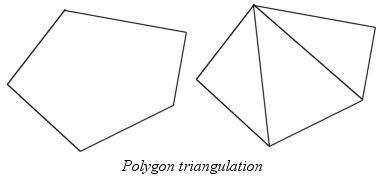
I won't have much theory about poly drawing, cause I don't think anyone would care anyways :)
Flatshaded polygons (polygons made using one color only), the type of polygon that's easiest to fill (except for wireframe polys, that aren't filled anyways, so I don't know why I even write this comment :), are most often made using these three steps:
- point sorting
- slope calculating
- drawing
Point sorting is basically needed to make life easier when doing the other stuff, cause you won't have to check if the y between two points should be increasing or decreasing, and it also makes stuff such as gouraud shading and such a bit easier.
Slope calculating is needed to calculate all x values for every y in the poly, and is done using the formula m=(x1-y1)/(x2-y2), where m is the medium slope value.
Drawing is quite a good thing too... :) The drawing is the easiest part, and is done by drawing horizontal lines between the x:es calculated when calculating the slopes.
We will sort the points as shown in the picture:
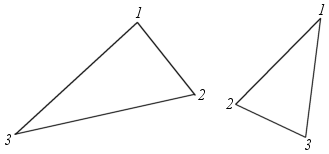
Here's an example of how the routine could be implemented:
'Made by Sane at the 23st of February 2001, for QBCM
SUB flatpoly (xx1, yy1, xx2, yy2, xx3, yy3, c)
'Declare an array for storing slopes
DIM poly(199, 1)
'Point sorting
IF yy1 < yy2 AND yy1 < yy3 THEN x1 = xx1: y1 = yy1
IF yy2 < yy1 AND yy2 < yy3 THEN x1 = xx2: y1 = yy2
IF yy3 < yy1 AND yy3 < yy2 THEN x1 = xx3: y1 = yy3
IF yy1 < yy2 AND yy1 < yy3 THEN x3 = xx1: y3 = yy1
IF yy2 < yy1 AND yy2 < yy3 THEN x3 = xx2: y3 = yy2
IF yy3 < yy1 AND yy3 < yy2 THEN x3 = xx3: y3 = yy3
IF yy1 <> y1 AND yy1 <> y3 THEN x2 = xx1: y2 = yy1
IF yy2 <> y1 AND yy2 <> y3 THEN x2 = xx2: y2 = yy2
IF yy3 <> y1 AND yy3 <> y3 THEN x2 = xx3: y2 = yy3
'Calculating of the slope from point 1 to point 2
m = 0
x = 0
IF x1 + x2 <> 0 AND y1 + y2 <> 0 THEN m = (x1 - x2) / (y1 - y2)
FOR y = y1 TO y2
poly(y, 0) = x + x1
x = x + m
NEXT y
'Calculating of the slope from point 2 to point 3
m = 0
x = 0
IF x2 + x3 <> 0 AND y2 + y3 <> 0 THEN m = (x2 - x3) / (y2 - y3)
FOR y = y2 TO y3
poly(y, 0) = x + x2
x = x + m
NEXT y
'Calculating of the slope from point 1 to point 3
m = 0
x = 0
IF x1 + x3 <> 0 AND y1 + y3 <> 0 THEN m = (x1 - x3) / (y1 - y3)
FOR y = y1 TO y3
poly(y, 1) = x + x1
x = x + m
NEXT y
'The easiest part, drawing
FOR y = y1 TO y3
LINE (poly(y, 0), y)-(poly(y, 1), y), c
NEXT y
END SUB
And here's some simple test code for it:
'Made by Sane at the 23st of February 2001, for QBCM
SCREEN 13
oldtimer! = TIMER
DO UNTIL INKEY$ = CHR$(27)
x1 = INT(RND * 320)
x2 = INT(RND * 320)
x3 = INT(RND * 320)
y1 = INT(RND * 200)
y2 = INT(RND * 200)
y3 = INT(RND * 200)
flatpoly x1, y1, x2, y2, x3, y3, INT(RND * 15)
polynum = polynum + 1
IF TIMER > oldtimer! + 1 THEN LOCATE 1, 1: PRINT polynum: oldtimer! = TIMER: polynum = 0
LOOP

I wrote this code in a hurry (this is the afternoon before the articles have to be sent in), but I got about 170 randomized polys/sec on my K6 233 mHz, uncompiled and unoptimized.
In case you're too lazy to write the code into QB, there should be a file called "POLY.BAS" together with QBCM if you've downloaded the zip version.
This was all from me this time, please mail any comments to <sane@telia.com>, I'd love to get any feedback.
Next part will probably be about gouraud shading, maybe other poly filling techniques too, but if you'd like me to write about something else, or have any ideas for future subjects, mail me at the same address as above, <sane@telia.com>, see ya then, and good luck with your poly coding :)
QBasic Programming and Gaming: A Commentary on the State of QBasic on
The Web
By Gianfranco <pigeon_gb@yahoo.com>
The other day I was talking online with someone who I had met last
year. I was telling him about my QBasic website, and he was going to check
out a few games once I explained that I do game reviews.
He was going to play Spinball by Eric Carr, and I told him that it was
a good game. I made some other good suggestions as well, but then
remembered that some of the better games require EMS.
He told me that he had Windows 98, and I told him that he most likely
will have to change the config.sys file...common knowledge in the QB
community. I assured him that it would be fine and it would let him play
some of the cooler games that use EMS memory.
As I was walking him through msconfig, he kept saying how scared he
was about changing any of the settings. I told him that it would be
fine, but he was still unsure. At one point I told him to delete NOEMS in
one of the lines, and I guess the word "delete" scared him. He decided
that he would not worry about it, and try to stick to games that do not
require any setting changes on his computer.
It was then that I noticed that my website and others, if kept the way
they are, would always be QBasic websites for QBasic users.
"Well, no duh," says you. Yes, I know how silly it sounds, and of
course QBasic websites have this nice characteristic of being part of a
community. C++ websites? They seem more independent than QBasic
websites, and they generally are. But do these sites only cater to those who
use C++? Most likely not. The language used is not the issue, but the
games they make are. I am not downloading a C++ game made by
independent developers. I am downloading a game made by developers.
On QBasic sites, I am downloading "QBasic games" and I do not see a
problem with that. The real problem is with the user-base. What do I
mean? Well, take a look at some of the games that are being made in
QBasic today, such as Zeta, Ultimate Super Stack, 'Ghini Run, and others.
And take a look at the tools being developed and tweaked, such as Future
Library, DS4QB, and TCP/IP libraries (hopefully soon!). QBasic has a
lot going for it already, and more coming in the future. But is the
user-base dwindling?
People have been saying that QBasic is dead for years. Every month or
so some major QBasic website goes offline or stops updating. Projects
never get finished. Lots of things cause cobwebsites to end up the way
they do. What is promising is that there are many newbies who come up
with some interesting projects. They also have their own websites.
The QBasic start-ups are there! Just check out <http://keikoonline.cjb.net>
for Keiko's "New QBasic Developer's Center" to see an entire site
dedicated to newbies! Qbasic Contest Central, which can be found at
<http://www.geocities.com/qbasiccc>, came about because Neozones closed
down. Hyper Realistic Games at <http://www.qbrpgs.com> has been trying to
be the new home for QBasic RPGs on the web. <http://www.qbasic.com>
still gets an active message board, and there are plenty of people who are
there! How many of them are immersed in the online world of QBasic?
Since the site never gets updated, the links are mostly dead. What about
sites like Future Software, NeoBasic, V Planet!, or even QBCM? Most of
those newbies never even knew that there was a QBasic website, let
alone an entire community!
So we have a bunch of people who started to learn QBasic in school.
They find out that they can easily do graphics, and then they think what
all of us probably thought at that time: "I can make a game!" And
then? Well, the text-based games come around, then the simple graphics.
Then the realization that, "Hey, since I thought of this, I bet there is
a site out there that might have some QBasic games. I can probably
learn about that." Then they either type qbasic.com in their browser and find a Microsoft
page, or they are lucky enough to type in www.qbasic.com. Even luckier
are the people who look up QBasic in a search engine.
So now we have someone who wants to make games, and he sees that there
is a lot more you can do with QBasic. He/She sees games that are
already made and think, "Oh, wow! I can't believe this is QBasic!" Then the
dedicated ones want to learn how to do things like the special effects
seen in some of these games. That is when they learn about QuickBasic
4.5 and compiling and libraries and EMS...
HOLY CRAP! EMS?! You mean my games could use more memory?! But wait
a minute...I can't even PLAY these damn games! They do not work! Forget
this!
And so they might delete the program and move on. They might learn
about how to change the config.sys file to make these things work with
their version of Windows if we're lucky. Some might not care, and
eventually learn how to do things on their own, but do you think that the
games made by these people will be able to stand up to some of the more
advanced games made? Sub-par games would not contribute much to the
community except as learning experiences for the programmer. I think that
these programmers can do so much more, but it is like trying to teach
someone from the Middle Ages how to use the telephone. There is a lot
of things in between that would be missing, and so many could be filled
in by first giving that person a history lesson. So much has been done
in QBasic, from getting Sound Blaster music and sound effects to the
development of high-res graphic libraries to the EMS/XMS memory
available. Should a QBasic programmer have to continue using PLAY and BEEP
within QBasic 1.1 simply because they did not know what was possible?
But this article is not about the newbie...it is about the gamer.
Regardless if you made the program, and regardless if you include info
about changing the config.sys file to accomodate the EMS, some people will
not read the README.TXT file...even if you name it
IMPORTANT!READMEFIRST.TXT or something like that.
But this article is not about the games...the readme should be able to
let the gamer know what could be done. What about the websites?
Couldn't QBasic webmasters do something more? I mean, I have seen some of the
major sites and some of the smaller upstarts including a section
entitled "What is QBasic?" but what about a section called "How to play these
games" or something like that? I noticed that even if there is a game
that does not require EMS, there are some that require QBasic 1.1 or
higher to play because it is simply a .bas file. Imagine telling someone
who is afraid to touch the config.sys file that he/she has to run a
program from within another program, which looks like one large blue
screen with a menu at the top! Then imagine all that can go wrong with
someone who accidentally types some garbage in the code and it stops
working!
I know this article is kind of long for what it is saying, but here
are my points:
- QBasic websites need to cater to not only the QBasic programmers,
but to gamers in general. One of the things that could be included on a
website is a "How to get these games to work" section, with easy to
read instructions and maybe some pictures to go with it.
- QBasic programmers need to cater to gamers as well. QBasic games
should be compiled. Obviously it would be wrong to take someone else's
game and compiling it for them, but for games being made now, compiling
is seriously the best thing you could do to make sure your game is
played by as many people as possible. Source code can be provided, but it
should not be the main way to play a game. It would turn many people
off.
What would this do?
- It would make QBasic last longer since more and more people would
be playing the games made with it. The more people like the games, the
more that programmers and software teams would like to make games.
Feedback is important, and more feedback from more people is obviously
better.
- More programmers would be available, meaning more games, more
websites, and more QBasic! If I just got a computer, and I just learned how
to get QBasic to do simple homework problems, then I probably do not
know much about how to do a lot of the advanced programming. Also, if I
start to learn, I won't be able to get anything to work if my settings
are not correct. This might turn me off from QBasic, possibly from
programming in general. Or it might result in sub-par QBasic games that
would not contribute to #1 here.
Some websites are already doing something like this. V Planet! at
<http://www.hulla-balloo.com/vplanet/index.shtml> always tells you at the
end of the reviews what is needed to play the game. I think more
websites need to do this, but I also think more can be done. Programmers
and gamers: two things that will help the QBasic community live longer
and healthier.
Advanced Speed Optimization Techniques
By Toshi Horie <toshiman@uclink4.berkeley.edu>
- The classic one is to use DEFINT A-Z. This forces you to use
as many integer variables as possible.
- Use integer variables to index FOR loops. This may require
substitution and algebraic simplification.
Before:
FOR i!=0 to 0.3 STEP 0.01
p!=i!*3
NEXT
After:
FOR i%=0 to 30
p!=i%*0.03
NEXT
- Use SELECT CASE instead of a bunch of ELSEIFs.
Before:
IF i=1 THEN
CALL DrawSprite
ELSEIF i=6 THEN
CALL PlaySound
ELSEIF i>9 AND i<16 THEN
CALL Calculate(i)
ELSE
PRINT "."
ENDIF
After:
SELECT CASE i
CASE 1
CALL DrawSprite
CASE 6
CALL PlaySound
CASE 10 TO 15
CALL Calculate(i)
CASE ELSE
PRINT "."
END SELECT
- If your code has a lot of floating point calculations that need
high accuracy, compile with QB 4.0. (e.g. a raytracer)
- If your code has a lot of floating point calculations that don't
need more than 8 bits of accuracy, then definitely convert it to fixed
point. Even if it needs up to 16 bits of accuracy, it might be worth
converting to fixed point, if it is being used in the main loop. (e.g. a rotozoomer or voxel terrain)
- don't use IFs (conditional branches). Some comparison results
can be directly be used in a calculation. Note that in QB,
a TRUE boolean expression equals -1, and a FALSE one equals 0.
Before:
IF a>4 THEN
b=5
ELSE
b=0
ENDIF
After:
b=-5*(a>4)
- use an assembler keyboard handler or INP(&H60) plus keyboard buffer
clearing routines instead of INKEY$.
- store the results of complicated expressions in look-up tables.
Before:
pi=ATN(1)*4
DO
FOR i=0 to 360
x!=100+COS(i*pi/180!)
y!=100+SIN(i*pi/180!)
PSET(x!,y!),c
NEXT i
LOOP until LEN(INKEY$)
After:
pi=ATN(1)*4
- Make constants CONST. Unfortunately, you can't use transcendental
functions like ATN on the right side anymore.
Before:
pi=ATN(1)*4
piover2=pi/2
After:
CONST pi=3.14159265358979#
CONST piover2=pi/2
- Unroll short loops.
Before:
FOR a=1 to 8
POKE(a,0),a
NEXT
After:
POKE 1,1
POKE 2,2
POKE 3,3
POKE 4,4
POKE 5,5
POKE 6,6
POKE 7,7
POKE 8,8
- Partially unroll long loops.
Before:
FOR x=0 TO 319
POKE x,a
NEXT
After:
' this is a silly example, you should be using
' MMX filling or REP STOSB at least.
FOR x=0 TO 319 STEP 4
POKE x,a
POKE x+1,a
POKE x+2,a
POKE x+3,a
NEXT x
- Move junk outside of the inner loops (code movement).
Before:
FOR y=0 TO 199
FOR x=0 TO 319
a=x*4+COS(t)
b=y*3+SIN(t)
NEXT
NEXT
After:
FOR y=0 TO 199
b=y*3+SIN(t)
FOR x=0 TO 319
a=x*4+COS(t)
NEXT
NEXT
- Use cache sensitive programming. This means, try to
access your arrays in a sequential manner if possible. If not, access them
in small blocks that are adjacent to eachother.
For example, QB arrays are usually stored in a column major
order.
- Pass dummy parameters to functions to improve alignment. This only makes
a slight difference in speed.
- Prefer array indexing over user defined TYPEs.
Warning: This makes code unreadable.
- Avoid multidimensional arrays.
- Use POKE instead of PSET. This is a simple way to get 2x performance in graphics intensive apps.
- PEEKing from video memory is slower than PEEKing from system memory.
Therefore, use double buffering when you need to do feedback effects.
- Use DEF SEG sparingly.
- Don't use '$DYNAMIC. QB arrays in the default segment are accessed at blazing speed, because
there is no segment switching. However, '$DYNAMIC puts them in different
segments, which need extra instructions to accessed, slowing them down.
This makes a big difference in programs that use large lookup tables in
their inner loop.
- Don't put the main loop in the main code-- put it in a SUB.
- Use AND instead of MOD for MODing by a power of 2.
Before:
a=b MOD 64
After:
a=b AND 63
- Simplify compares against zero.
Before:
' assuming a% only decrements by one
IF a%>0 THEN
b%=b%-1
END IF
After:
IF a% THEN 'note >0 is gone
b%=b%-1
END IF
QB Tips & Tricks
This month we have a couple tricks from logiclrd, one of the very learned QB coders on EFNet's #quickbasic channel.
- Use \ instead of / when dividing two INTEGERs and assigning the result to
an INTEGER, or dividing two LONGs and assigning the result to a LONG. Use /
when dividing two SINGLEs or two DOUBLEs.
- If you are testing a single character in a$ against a number of other
characters, use INSTR to quickly isolate which, if any, of the characters
it matches. For example, INSTR("aoeui", a$) determines if a$ is a vowel,
and if so, which vowel it is.
- When performing file I/O, it is far more efficient to process large
blocks and break them down than to process the smaller, constituing blocks.
For example, if you are writing output from the screen, don't write one
pixel at a time. Instead, build a string representing the pixels for a row,
or for more than one row, and periodically write the string to disk. If
copying a file, process large chunks that are multiples of 512 bytes (for
example, 4,096 bytes) instead of single bytes. QB does not buffer file I/O
for you.
- If you frequently search an array for various values, sort the array so
that you can use a binary search.
We'll have more tips from logiclrd next issue.
Site of the Month

Since Neozones was shut down (and before then, too), the CodeX programming contest was dead. While the original is gone though, there's a QB website dedicated to do what CodeX used to be. This site is QBasic Contest Central. Although it's rather small and seemingly amateurish, it's really a great place to go head to head against other QB programmer in the battle of coding skills. The purpose and spirit of QBasic Contest Central deserves being March's Site of the Month.
As last month, we have no award image for Site of the Month. I swear, next issue we will. - Ed.
Demo of the Month

Blocky but fast, who cares about the textures?
The JNK Raycasting Engine is, well, pretty cool. You can choose how fast you turn and how fast you walk before you start. Then, you're in a nicely rendered environment (with horrible textures), where you can walk around, jump, fall, or look around with the mouse. That's reverse mouse though (as if flying a plane). The only problem I have with it is that the map is inside the engine itself (or at least that's how it seems).
JNK Raycasting Engine is included in the downloadable version of this issue as jnk.zip, have fun with it!
The CultPoll
This month, we decided to find out how people feel about porting our great QB to other platforms, be they Windows, Linux, Amiga, or any other operating systems. This is what you told us:
- 49% (31 people) feel that it's definately going to happen, thanks to QBCC and other QB compiler projects.
- 19% (12 people) are uncertain but hopeful that one day QB won't be confined to DOS.
- 11% (7 people) "bah humbug" the notion that QB will break free of it's humble 8 bit origins.
- 20% (13 people) get pimped hardcore by leroy, the guy leading the QBCC project.
Thanks to everyone who participated in this issue's poll. Now go vote on next issue's!
Demo Coders Corner
By Matthew R. Knight <horizonsqb@hotmail.com>
Feedback Loops
Welcome back to the Demo Coders Corner!
I'll have to keep this article short, since I don't have proper access to a
PC at the moment. I guess I'll just have to make up for it next month
then, eh? :)
For those of you who don't already know, Toshihiro Horie is holding an
interesting pure-QB demo contest. For more information, surf to <http://toshi.tekscode.com/democontest.html>.
Well, let's get into this month's article...
If you own a video camera, try pointing it at the TV. The strange patterns
that occur are a result of what is known as "feedback". The video camera
recieves an image, which is then displayed on the TV after a short delay.
Then, the camera "see's" the TV being displayed on the TV (heh), and sends
that image back to the TV. And so it goes on, in an endless loop. (You've
probably seen this done somewhere before.)
Things don't work out exactly like this, however. The camera is incapable
of capturing a perfect image, and obviously, the TV is incapable of
displaying an image perfectly. These imperfections multiply as the 'loop'
continues, and as a result of this, some interesting patterns form. Any
change in the camera's position or focus will cause a change in these
patterns.
Feedback can be simulated on a computer (duh, otherwise I obviously wouldn't
be writing this article would I? :D) Next month we'll be looking at how we
can use feedback to accomplish a number of interesting effects such as
squashing, warping, bending, etc. (Which in turn can be used to accomplish
a number of other effects.)
Feedback can simply be simulated as follows:
- Begin with an image.
- Modify it in some way.
- Display the image.
- Loop to step 2.
The modifications build up and the original image becomes increasingly
distorted.
To achieve more interesting effects, be creative in the modifications you
make! For example...
- Begin with an image.
- Rotate and scale down the image.
- Mix this new image with the original image.
- Loop to step 2.
Interesting effects may sometimes also be achieved by applying a slightly
different modification to each frame. Just experiment. :)
Next month we'll experiment with warp and flow mapping, and we'll use them
to create some interesting fire effects.
Stay tuned. :)